
Table of contents
Appifio Creator · Lesson AS12 · Beginner · Aura series · CMS
CMS theme & menu
apply / remove without wiping data
apply / remove without wiping data
Change the panel look or site menu with CMS buttons - posts and orders stay in the warehouse.
Learning goals: Open Appearance; Apply / Remove a theme; save the menu with UI labels.
Previous: AS07 · Next: AS13 · ~10 minutes
Appearance Apply Remove Save menu
1. Map
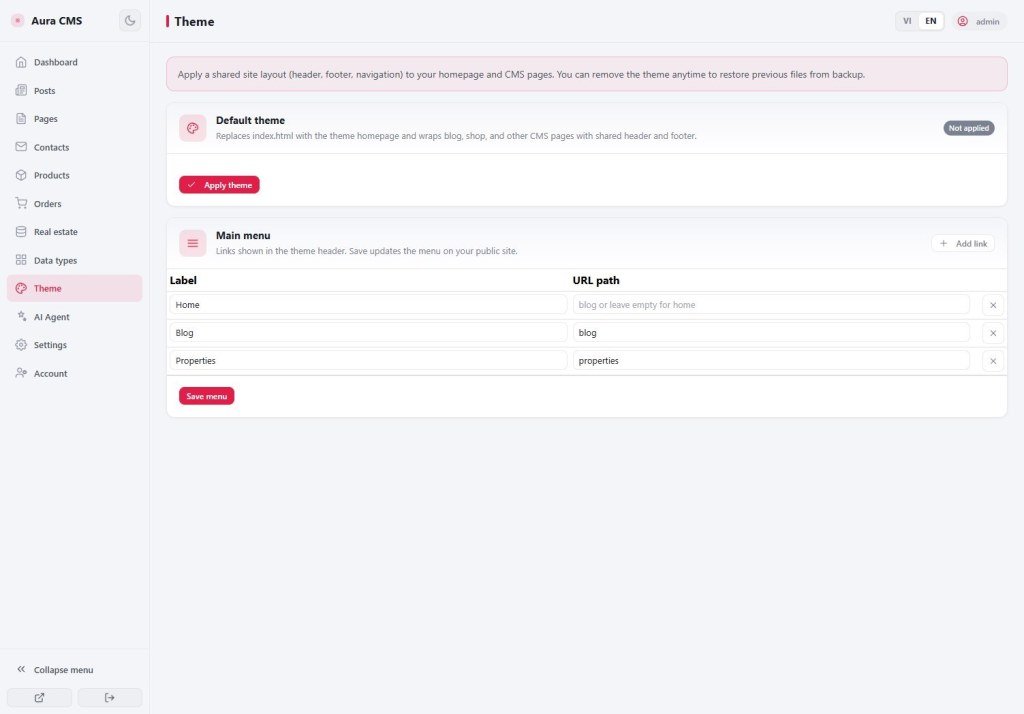
CMS → Appearance
→ Pick a theme → Apply
→ (Optional) edit the menu → Save
→ Not happy → Remove (posts/orders data still remain)
2. Glossary
| Term | Meaning | Where you see it |
|---|---|---|
| Theme | A ready-made look / layout pack | Appearance nav |
| Apply / Remove | Turn the selected theme on or off | Appearance screen |
3. Steps
- CMS → Appearance.
- Preview / pick a theme → click Apply (exact button label).
- If you edit the site menu: finish editing → Save / Save menu.
- Open the web to check; if unhappy → Remove then try another theme.
4. Comparisons
- WordPress Themes: Activate / Switch - similar to Apply.
- Shopify themes: switching themes does not delete products.
5. Limits
You can
- Change look quickly without opening Creator
Note
- A theme may overwrite page layout - create a Creator Version if you hand-tuned a lot
6. Checklist
- After Apply, are posts/orders still in CMS?
- Do you know where Remove is?
Next group · MCP
AS13 - What is MCP? When you need it
Internal navigation (same language)
Appifio Creator · Aura series · AS12
