
Table of contents
Appifio Creator · Lesson AS11 · Intermediate · Aura series · CMS
Content security settings
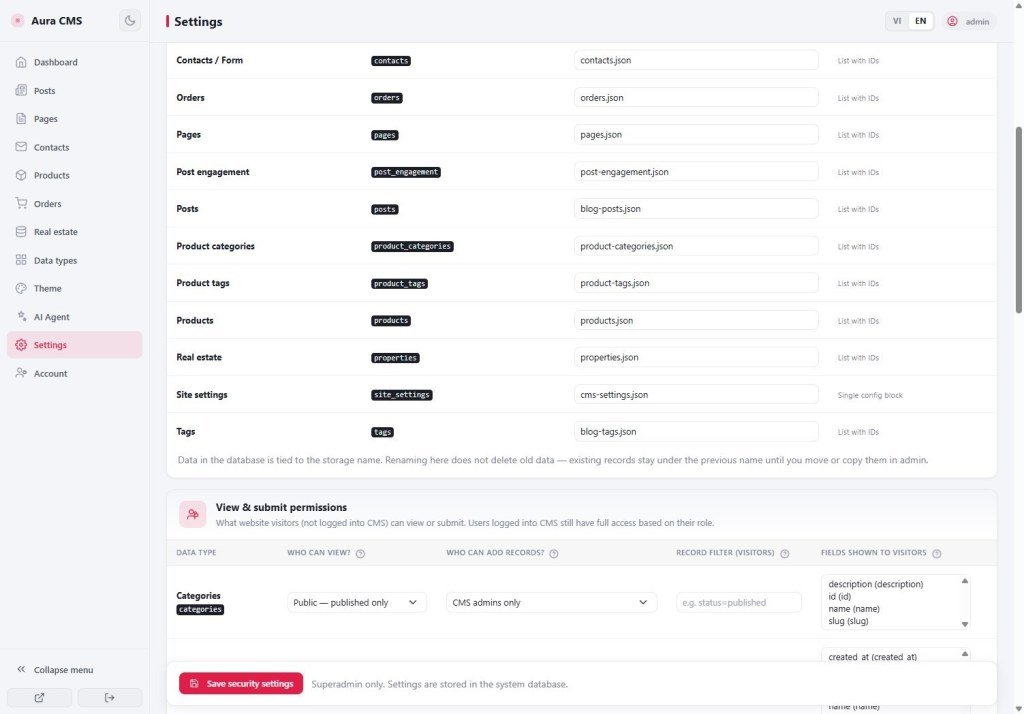
who can view / append
who can view / append
Adjust in the CMS UI: guests only send contacts; hide drafts; some actions are admin-only.
Learning goals: Find Settings for view/append rights; set everyday rules; test as guest vs admin.
Previous: AS07-AS09 · Next: AS12 · ~12 minutes
Settings Security Save
1. Mental model
For each content type (posts / contacts / orders…)
Who may view? · Who may append? · Who may edit/delete?
Safe example: Guest may only append Contacts · may only view Published posts
2. Glossary
| Term | Meaning | Where you see it |
|---|---|---|
| Guest | Not logged into admin | Public site |
| Security settings | Screen choosing who may view/append | CMS → Settings |
3. Steps (UI only)
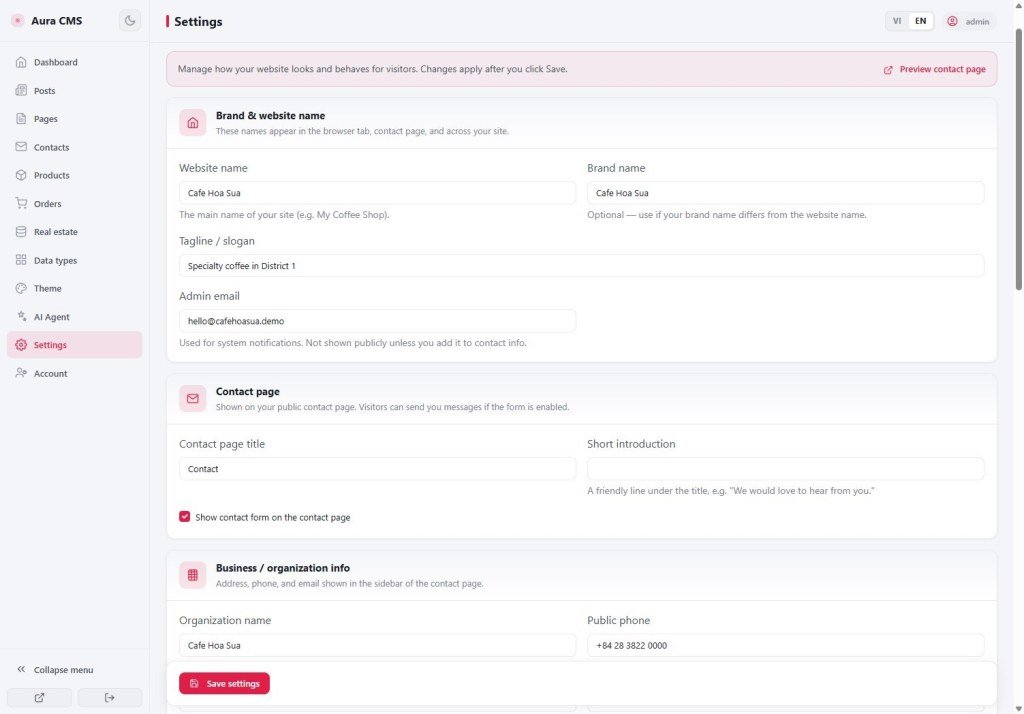
- CMS → Settings → find the area for content permissions / security (labels may be “Security”, “Permissions”, “Site mode”… depending on version).
- Set: guests may append contacts; may not view drafts; may not edit someone else’s order.
- Click Save on that screen.
- Test: private/incognito window (guest) vs a window logged into CMS.
Follow on-screen labels only. You do not need (and should not hunt for) technical function names in panel code.
4. Comparisons
- WordPress members / roles: who sees a private post.
- Firebase Security Rules: same “who may read/write” idea - Appifio configures it in the UI.
5. Limits & security
- After you tighten rights, some actions on the live site may be blocked - that is intended.
- Do not ask AI to “bypass protection” so guests can do dangerous things.
6. Common issues
| Situation | Fix |
|---|---|
| Contact form blocked / denied | Allow guests to append Contacts |
| Guests see drafts | Tighten view rights + post status |
7. Checklist
- Did you test in an incognito window?
- Are drafts hidden from guests?
AS12 - CMS theme & menu in the UI
Internal navigation (same language)
Appifio Creator · Aura series · AS11
