
Appifio Creator · Lesson K08 · Technical
· Restore - don’t permanently delete before Clone
Technical companion to D01: tell recoverable soft delete from permanent delete, with role limits and file quota.
Learning goals: Restore after accidental delete, know who can hard-delete, and know when to Clone before risky actions.
Reading time: about 12 minutes
Prerequisites: D01 (Files tab basics), K02 (Clone before large changes).
Previous → next: K07 → K08 → K09
Main UI labels: Files tab · Show deleted files · Restore file · Permanently delete · Upload image
1. File lifecycle
2. Glossary
| Term | Meaning | Where |
|---|---|---|
| Soft delete | File marked deleted but still in the project store - restorable | Delete file / Delete folder |
| Hard delete (permanently delete) | Removed from the project store - cannot undo | Only when Show deleted files is on |
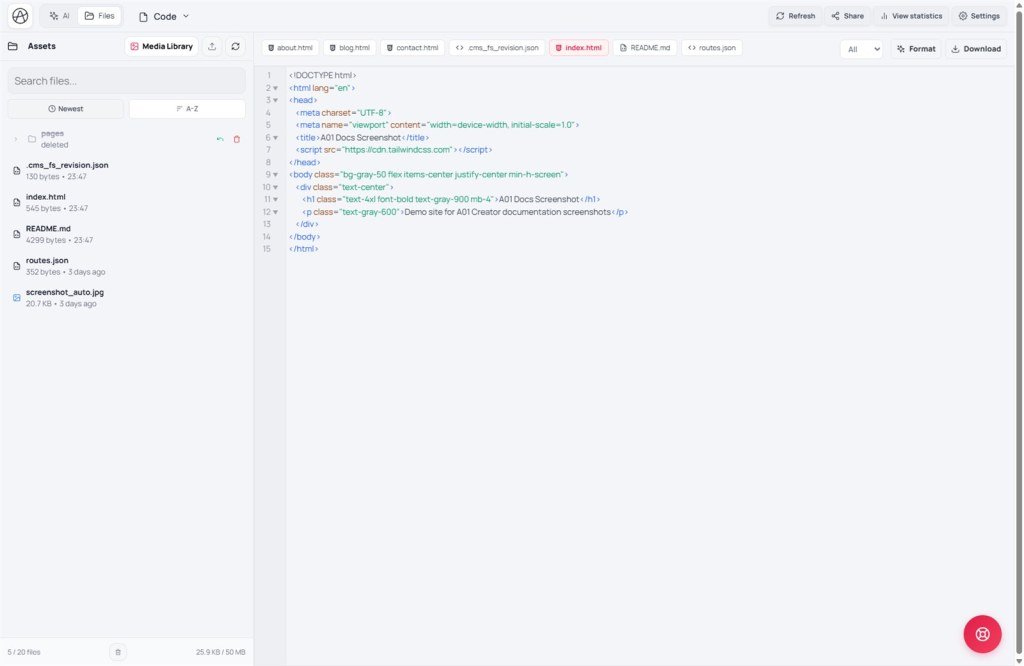
| Show deleted files | Toggle to list soft-deleted files/folders | Files tab toolbar |
| Restore file | Return the file to normal, usable again | Next to a soft-deleted file |
| restoreFile / hardDeleteFile | Matching backend APIs - hard usually needs superadmin | No button for low roles |
3. Restore after accidental delete
- Open the Files tab.
- Turn on Show deleted files.
- Find the file/folder → click Restore file (or Restore folder).
- Turn the toggle off to return to the normal tree - confirm routes/links still point at the file.
- For media images: use Upload image again if it was already permanently deleted.
4. Hard delete & permissions
Permanently delete: Confirm dialog like “…permanently delete file '{name}' from the project store?” - after this, Restore file is gone.
Role limits: Normal users only soft-delete. Hard delete is usually superadmin - if you don’t see the button, don’t try via a guest API.
Safe workflow: Before hard delete on production → Versions → Create new (Clone) (K02). Make sure no route/HTML still points at the file.
restoreFile vs re-upload: Soft delete keeps metadata in the store → Restore file keeps the old URL. Hard delete removes it entirely → Upload image or create a new file and fix links in HTML/CMS.
5. Compared with other tools
- Windows Recycle Bin: soft delete ≈ trash; hard delete ≈ Shift+Delete - not recoverable.
- Google Drive Trash: similar two-step flow; Creator doesn’t auto-purge on a timer - you choose permanent delete.
- Git revert: Clone + Save changes ≈ a “safe commit” before deleting important files.
6. Technical limits
Quota: “File count limit” or “Storage size limit” - permanently delete unused files/images to free upload space.
Not recoverable: After Permanently delete; after hard delete of CMS data files - only re-upload/recreate or restore from Clone/.afi.
7. Security
Hard delete is destructive - only superadmin should have it on production. Don’t share admin accounts with collaborators who only need soft delete + Upload image.
8. Common issues
| Situation | Fix |
|---|---|
| Accidentally deleted important HTML | Show deleted files → Restore file immediately - before anyone Permanently deletes |
| No Permanently delete button | Role too low - ask superadmin or stick to soft delete |
| 404 after deleting a file | Restore file or fix Routes to point at a new file |
| Can’t upload - limit message | Permanently delete unused files/images; or upgrade plan |
9. Tips
- Prefer soft delete - wait a few days before Permanently delete for quota cleanup.
- Always Clone before bulk hard delete or deleting a large folder.
- Full Files tab UI detail is in D01 - K08 focuses on the technical decision.
- Before deleting a folder with many files: search filenames in Routes and __cms_manifest__.
- Wrongly deleted media: prefer Restore file; if already permanent - Upload image again and update URLs in HTML.
10. Self-check
- Can you tell soft delete from Permanently delete?
- Can you restore via Show deleted files → Restore file?
- Do you remember to Clone before hard delete on production?
Next lesson
K09 - Custom domain & preview iframe
“Preview unavailable” overlay when a custom domain is attached - the live site still works; only the editor iframe is blocked.
Internal navigation (same language)
Appifio Creator · User guide · K08
