
- 1. Flow: 5-block brief → Send → Diff → Save
- 2. Glossary
- 3. Step by step
- 4. Related features
- The “Scope” block - your best defense against sprawl
- The “Check” block - force a report
- Project profile vs Prompt & Skills
- 5. Compared with other tools
- 6. Can / can’t
- 7. Security when writing prompts
- 8. Common issues
- 9. Tips
- 10. Self-check & next
Appifio Creator · Lesson K01 · Technical
in Creator
Write structured briefs so AI edits the right file and scope - not “rebuild the whole site” when you only want one button changed.
Learning goals: Write a 5-block prompt; pick Chat · Coder · Debug · UI · Architecture; attach images/docs and use Project profile in the right place.
Reading time: about 16 minutes
Prerequisites: B01 (basic chat), B05 (modes), T11 (tokens & Prompt & Skills).
Previous: B05 - Pick an AI mode for the job.
Next: K02 - Work safely: Clone → Diff → Save.
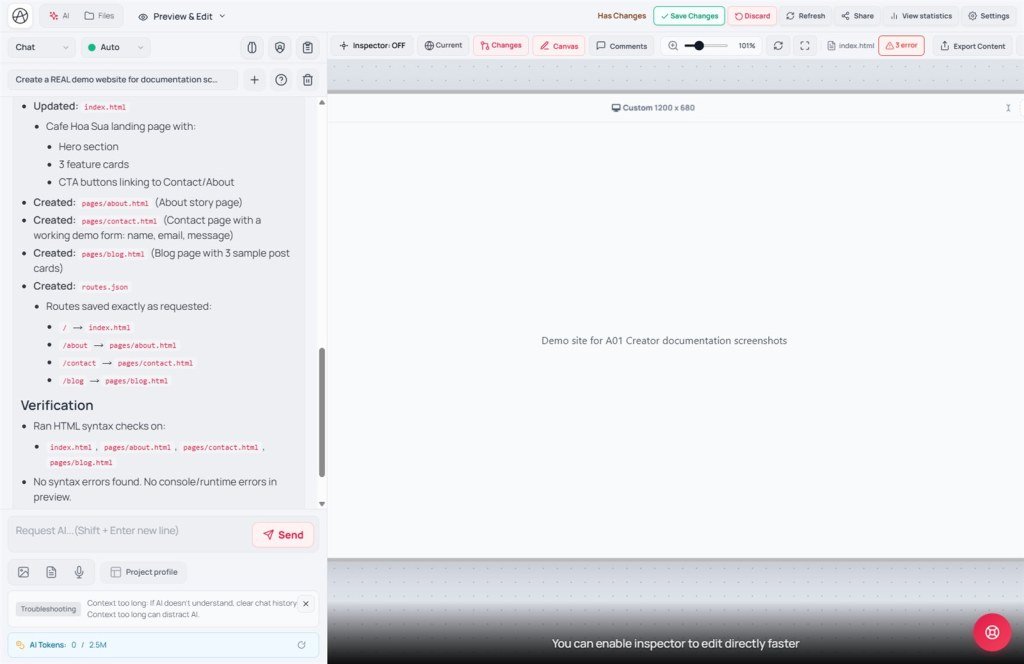
Main UI labels:
1. Flow: 5-block brief → Send → Diff → Save
2. Glossary
| Term | Meaning | Where in the UI |
|---|---|---|
| Brief / prompt | Structured request you send to AI | Ask AI… (Shift+Enter for new line) |
| Mode | How AI focuses its work | Chat · Coder · Debug · UI · Architecture |
| Narrow scope | Limit which files/sections AI may edit | Write it in the prompt (no separate button) |
| Project profile | Brand tokens: colors, fonts, mission - injected into prompts | Button near the chat frame |
| Prompt & Skills | Extra tone / skill rules for AI | Tab inside Project profile modal |
| Diff | Line compare Add (+) / Remove (−) before accept | Compare changes: panel |
3. Step by step
- Step 1 - Pick mode: copy/layout → UI; JS/console bugs → Debug; data/API/Storage → Coder or Architecture; light Q&A → Chat.
- Step 2 - Context: open Project profile; on long projects, enable profiles on the Prompt & Skills tab (see T11 for tokens).
- Step 3 - Write the 5-block brief in Ask AI… (Shift+Enter for new line): Goal · Scope (“ONLY edit…”, “DO NOT touch…”) · Target file/route · Constraints (colors, mobile, use appifio_client) · Check (“list files changed”).
- Step 4 - Attach: Upload image (mockup) or Upload document (PDF spec) when words aren’t enough.
- Step 5 - Send: click Send; wait for file edits. If wrong direction, continue in the same thread or New to reset context.
- Step 6 - Review Diff: open Compare changes: → accept ✓ / reject ✗ per file → or Apply changes / Close.
- Step 7 - Preview & Save: switch preview to Changes (vs Current) → when OK → Save changes.
4. Related features
The “Scope” block - your best defense against sprawl
Always write “ONLY edit index.html hero section” or “DO NOT change routes/backend”. Creator has Diff, but prevention beats cure - a narrow prompt means fewer rejects.
The “Check” block - force a report
“After editing, list files changed and explain briefly” lets you match Diff - catch early when AI touches unexpected files.
Project profile vs Prompt & Skills
Project profile = design tokens & brand. Prompt & Skills = writing tone + technical rules (e.g. “always use appifio_client”). Both inject context - longer = more tokens (T11).
5. Compared with other tools
| Tool | Prompt workflow | Creator difference |
|---|---|---|
| ChatGPT / Claude web | Free chat, paste code by hand | Writes files + Diff reject + Changes preview |
| Lovable / v0 | One big prompt, less scope control | 5 modes + scoped brief + Project profile for consistency |
| Cursor IDE | @file mentions, developer-focused | Inspector + Canvas + CMS manifest - no Git required |
6. Can / can’t
You can
- Steer AI to one section/file with a scoped brief
- Keep brand consistent via Project profile + Prompt & Skills
- Send mockups via Upload image so AI follows real layout
Limits
- Vague prompts can still touch many files - Diff doesn’t replace a good brief
- Long context (profile + long chat) burns tokens - trim (T11)
- AI doesn’t “remember” across New threads - restate scope
7. Security when writing prompts
- Don’t paste API keys, secrets, or admin passwords into Ask AI… - use Backend Secrets.
- Attached docs (Upload document) are read by AI - avoid unnecessary customer PII.
- Review Diff before Save changes if the prompt might add data-leaking endpoints.
8. Common issues
| Situation | Fix |
|---|---|
| AI rewrites the whole site for a small ask | Add Scope “ONLY edit…”; ✗ reject extra files in Diff; Clone first (K02) |
| AI ignores existing Storage/API | Coder mode + remind appifio_client (T02); add to Prompt & Skills |
| AI ignores Project profile colors/fonts | Update Project profile; prompt “follow Primary/Secondary tokens” |
| Diff too large to read | Narrow the prompt; ✗ reject files; resend a smaller ask |
9. Tips
- One prompt = one job. Split big work: Architecture plans → Coder/UI implements.
- Always include “DO NOT touch …” - often more effective than a long “edit this” list.
- After each Send, check Changes preview before the next prompt - avoid stacking mistakes.
- Save 5-block brief templates in Prompt & Skills for repeated tasks (form, hero, footer).
10. Self-check & next
- What are the 5 brief blocks? Can you write Scope for “change CTA button color”?
- Which mode for: console error · mobile CSS · new route?
- Project profile vs Prompt & Skills?
- After Send, what do you check before Save changes?
- How do ✓/✗ work in Compare changes:?
Next lesson
K02 - Work safely: Clone → edit → Diff → Save
Apply K01 briefs inside a checkpointed workflow - without fear of AI breaking the live layout.
Internal navigation (same language)
Appifio Creator · User guide · K01
