
Appifio Creator · Lesson K03 · Technical
Canvas breakpoints
Layout workflow: view three frames side by side → edit → Audit - don’t guess responsive from a single viewport.
Learning goals: Turn on Canvas; compare Desktop · Tablet · Mobile; add custom breakpoints (320-1920 px); run Audit correctly (Run check - no fake AI button in the modal).
Reading time: about 17 minutes
Prerequisites: C02 (preview), E05 (Audit), T09 (Canvas), K02 (Clone/Diff/Save).
Previous: K02 - Work safely.
Next: K04 - Inspector + AI.
Main UI labels:
1. Responsive flow in Creator
2. Glossary
| Term | Meaning | Where in the UI |
|---|---|---|
| Canvas | Side-by-side multi-artboard preview | Preview toolbar button |
| Breakpoint | Preview frame width (px) | Desktop / Tablet / Mobile labels |
| Add breakpoint | Custom frame within 320-1920 | Add on Canvas |
| Fit to content height | Artboard grows with page content - no crop | Toggle on Canvas |
| Audit | Automated layout/accessibility check | Audit → modal Run check |
| Standard | Default three-frame preset | Canvas preset dropdown |
3. Step by step
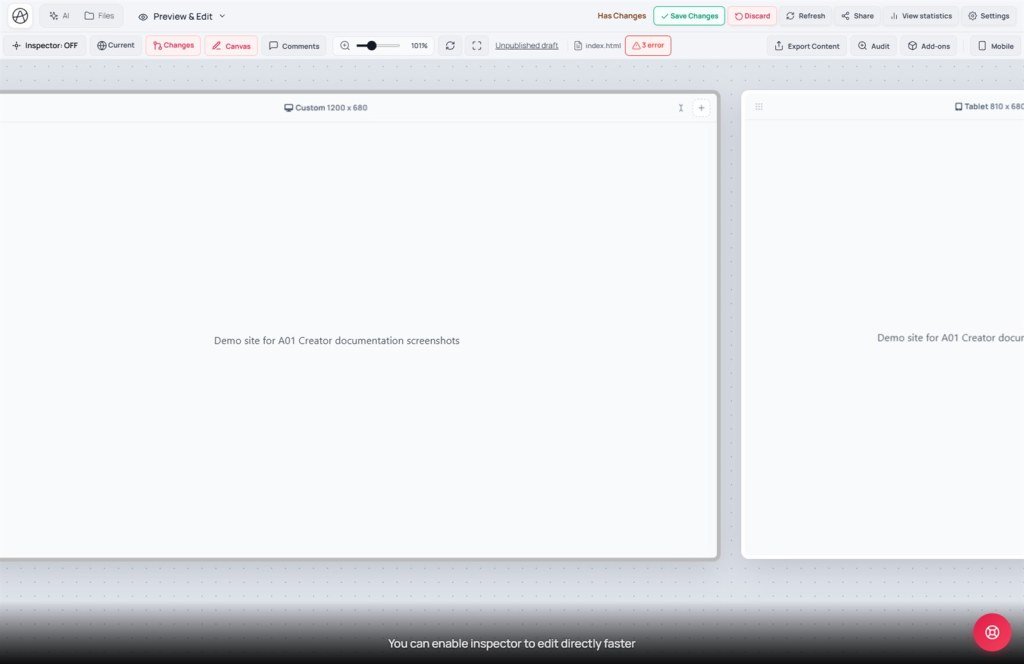
- Step 1 - Open Canvas: View & edit → preview Changes → click Canvas (turn off Android Mock if on).
- Step 2 - Watch three frames: compare Desktop, Tablet, Mobile - fix Mobile first (overflow, stacked buttons).
- Step 3 - Fit to content height when you need the full long page (landing, blog).
- Step 4 - Local edits: Inspector for spacing/CSS; or UI mode: “Only fix CSS under 390px mobile - don’t change desktop.”
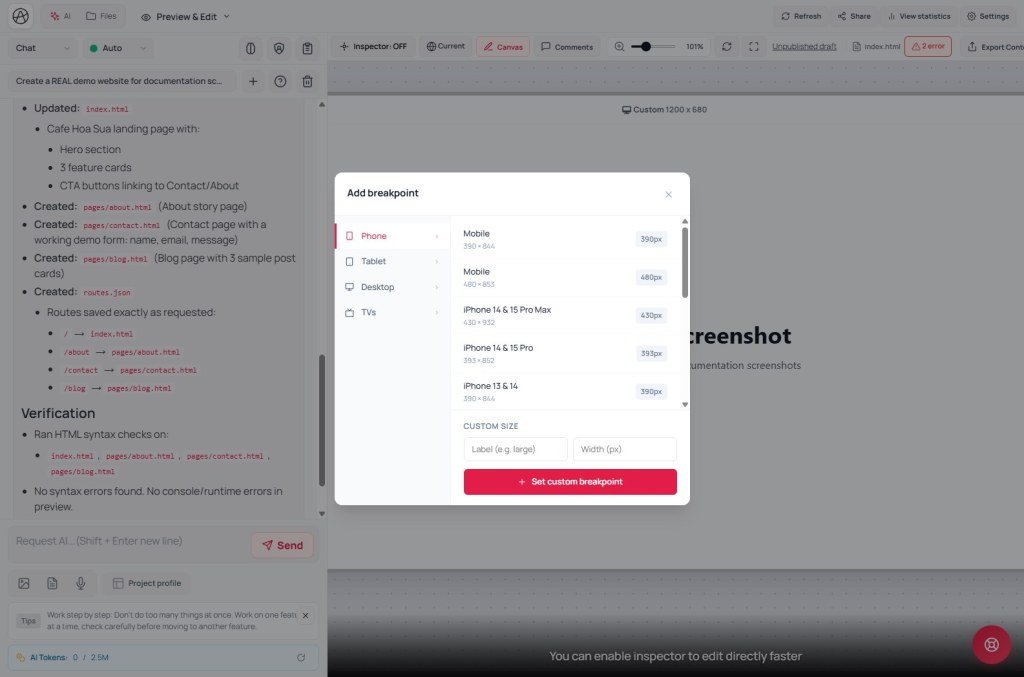
- Step 5 - Custom breakpoint: Add → label + width (320-1920 px) → confirm → drag to reorder frames.
- Step 6 - Audit: open Audit → Run check (Desktop + Mobile). No AI button in the modal - copy issues to chat or use Inspector.
- Step 7 - Finish: fix Audit findings → Run again → when clean → Save changes (details in E05).
4. Related features
320-1920 px limit
UI rejects breakpoints outside this range - protects preview performance. iPhone SE (~320) and wide desktop (~1920) are the valid edges.
Canvas vs single Mobile mode
Only viewing Mobile in one frame misses tablet/desktop breaks. Canvas shows them together - spot wrong flex/grid direction immediately.
Audit ≠ Ask AI
The Audit modal only has Run check / Run again - mechanical reports. To have AI fix issues, copy into chat or use Ask AI to edit in Inspector (K04).
5. Compared with other tools
| Tool | How you view responsive | Creator Canvas |
|---|---|---|
| Chrome DevTools | One viewport, device toggle | Many frames side by side - no F12 needed |
| Figma frames | Static design, many frames | Canvas on live HTML with JS/CSS running |
| Webflow breakpoints | Style per breakpoint in designer | Inspector + AI UI + media queries in code |
6. Can / can’t
You can
- Compare 3+ frames at once on the same Changes draft
- Add custom breakpoints (768, 1440…) within 320-1920
- Run Audit before publish
Limits
- Canvas doesn’t replace a real phone - still test the live URL
- Android Mock and Canvas usually conflict - turn Mock off first
- Audit doesn’t fix code - only reports; you/AI must edit
7. Security (responsive & UX)
- On Mobile, check forms don’t expose honeypot fields or admin buttons.
- Audit may flag low contrast - fix so content stays readable; don’t “hide” important info.
- Horizontal overflow can hide logout/settings - fix before Save changes.
8. Common issues
| Situation | Fix |
|---|---|
| Invalid breakpoint width | Enter 320-1920 px; UI errors outside that range |
| Fixed Mobile only - desktop broke | Always watch all three Canvas frames; prompt “don’t change desktop” |
| Can’t enable Canvas | Turn off Android Mock; select Changes, not Current |
| Looking for an AI button in Audit | There isn’t one - use Run check; copy issues to AI chat |
9. Tips
- Mobile-first in prompts: “base CSS for mobile, @media min-width for tablet/desktop.”
- After each Inspector edit, scroll all three frames - bugs often hide in the footer.
- 390 and 810 are presets - add 320 if you target SE/mini phones.
- Final Audit on Changes right before Save changes.
10. Self-check & next
- Three default Canvas presets and approximate widths?
- px limits when you Add a breakpoint?
- Which buttons are in the Audit modal - is there AI?
- When to use Fit to content height?
- Flow: Canvas → edit → Audit → Save?
Next lesson
K04 - Inspector + AI, used together
Edit elements on Canvas with Inspector, AI Rewrite, and Ask AI to edit.
Internal navigation (same language)
Appifio Creator · User guide · K03
