
Appifio Creator · Lesson T11 · Technical
(Prompt & Skills)
Tokens are your monthly “thinking budget.” The AI Tokens panel shows Used / Limit next to the chat. A Prompt profile is the skill/tone injected on every Send while that profile is on.
Goal: Read the AI Tokens panel correctly (Used / Limit / Reload / warning colors); enable/disable profiles; know that Auto Reasoner / AI Supervisor / Context summary spend tokens.
Before: B05, B06 · After: T12 · UI: AI Tokens · Reload · Prompt & Skills · Save & enable this AI profile · Disable this AI profile · Project profile
1. Token consumption diagram
2. AI Tokens panel - reading the UI
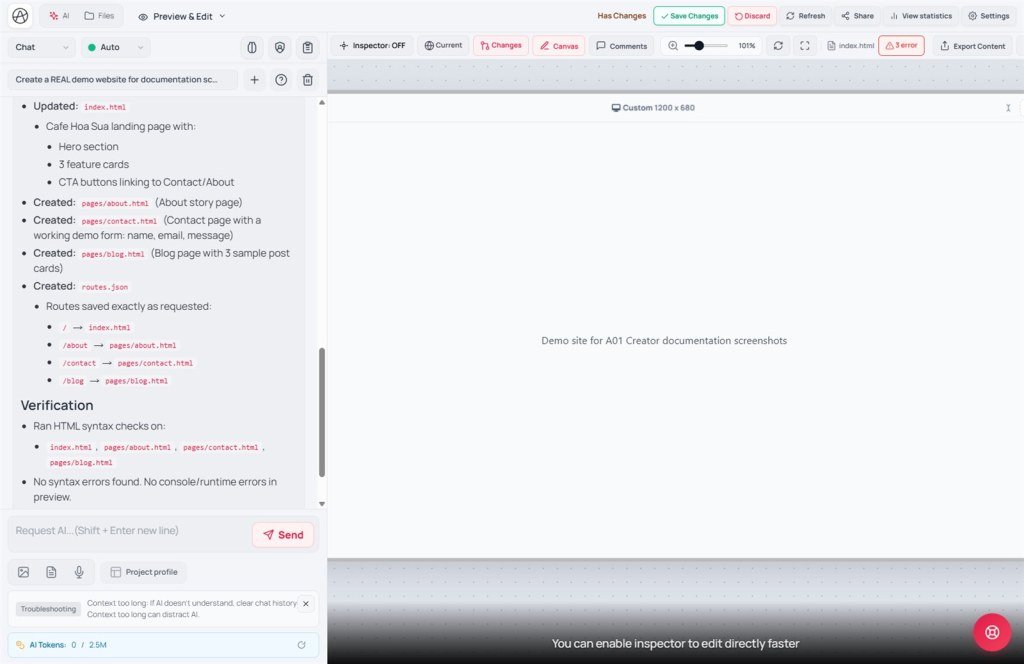
Status strip near the chat (beside hints): AI Tokens: Used / Limit.
- Tooltip: AI tokens used this month.
- Sync icon = Reload - refetch Used/Limit from the server (when numbers drift across tabs).
- Limit shows ∞ when the plan has no hard cap (token_limit = −1).
- Background color by usage %: normal (light yellow) → ≥70% amber warning → ≥90% red.
- After each AI reply, Used can rise immediately (
token_usageevent) without Reload.
3. Glossary
| Label | Meaning |
|---|---|
| AI Tokens | Monthly token quota; Used / Limit on the panel |
| Reload | Refresh numbers from the server |
| Prompt & Skills | Tab for skill/tone profiles |
| Save & enable / Disable this AI profile | On = auto-inject every request; Off = stop injecting |
| Auto Reasoner / AI Supervisor / Context summary | Chat-header toggles - better quality, more tokens |
| Project profile | Brand/colors/fonts… also enter context (B06) |
4. Steps
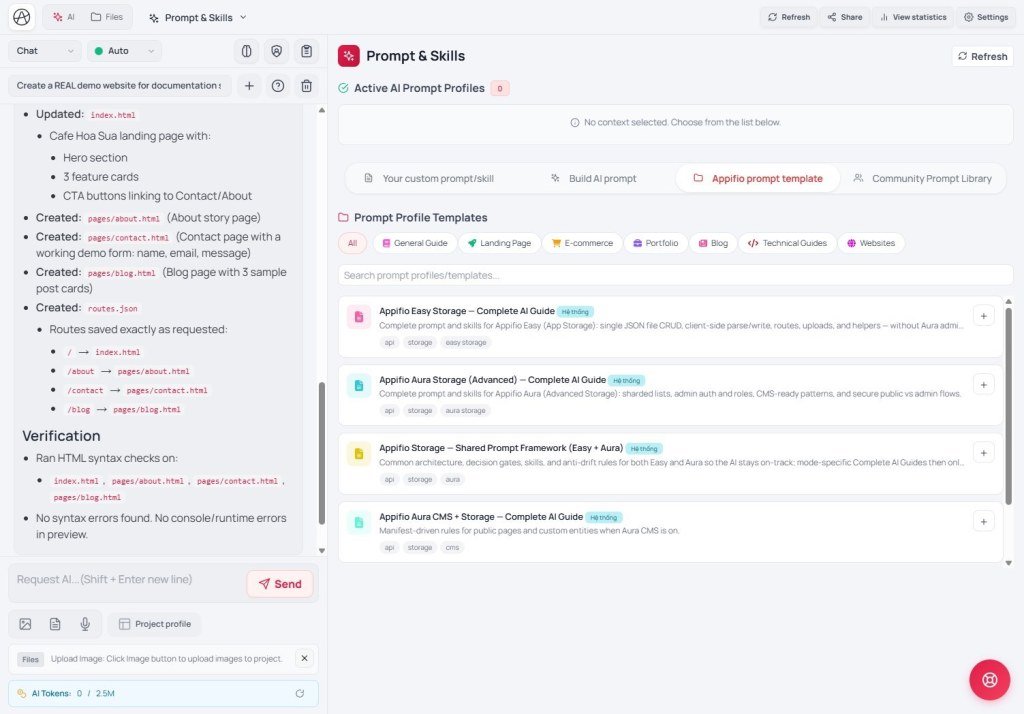
- Check the AI Tokens panel before a big work series - know how much quota remains.
- Prompt & Skills → Build AI prompt → describe → Analyze Brief / Rewrite AI → Save & Enable this AI profile.
- Turn off a mismatched tone with Disable this AI profile.
- Enable Context summary on long chats; turn off Auto Reasoner / AI Supervisor for tiny text tweaks.
- Fill in Project profile first (fewer color/font redo loops → saves tokens).
- Odd numbers: click Reload; if load fails - refresh the Creator page.
5. Comparisons · Limits · Security
- ChatGPT Custom GPTs / Cursor rules: closest to Prompt profile.
- OpenAI API usage dashboard: closest to AI Tokens (Creator’s panel is tied to the Appifio plan).
Limits: hit Limit → AI stops/refuses. Context too long → AI “forgets” - start a New chat / use Context summary. Security: never put real API keys in a prompt profile or Project profile.
6. Issues · Tips
| Issue | Fix |
|---|---|
| AI always writes the wrong tone | Is a profile still On? Disable the mismatched one |
| Token spike / panel red | Turn off Reasoner/Supervisor; shorten chat; pick the right AI mode (Chat · Coder · Debug · UI · Architecture); trim Project profile if huge |
| Used doesn’t move after chat | Click Reload; wait for WebSocket; refresh the page |
| “No profile enabled…” | Pick a template/community profile or Save & enable |
Next: T12 - Aura MCP sandbox · token · bridge
Internal navigation (same language)
Appifio Creator · User guide · T11
