
Table of contents
Appifio Creator · Lesson X08 · Troubleshooting
Templates wipe all data
- prevention & recovery
- prevention & recovery
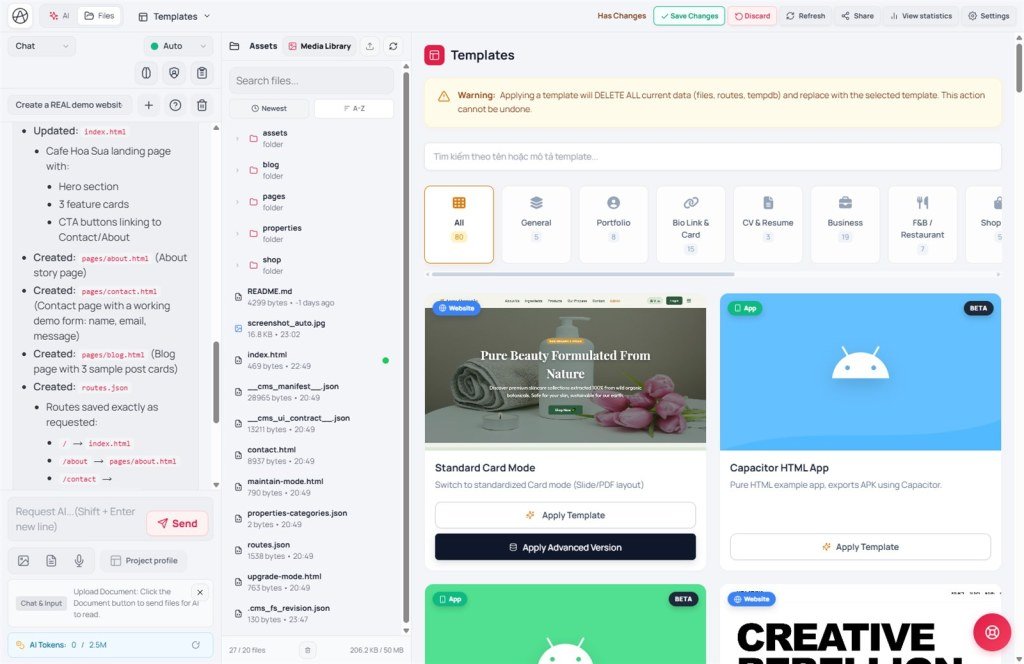
Applying a template is not a light theme swap - the system DELETES ALL files, routes, and temporary project data, then replaces them with the template. There is no Undo.
UI warning (Templates tab): Applying a template will DELETE ALL current data - every HTML/CSS/JS file,
routes.json, and temporary project data - and replace it with the template. The action cannot be undone.Goal: Understand wipe scope; always Clone/Export first; know how to recover if you applied by mistake.
Before: T01, T10 · After: X09 · UI: Templates tab · Apply template · Welcome Apply design template · Versions tab · Create new (Clone) · Export
Duration: 8-10 minutes
1. Prevention / recovery map
BEFORE you apply a template:
→ Versions tab → Create new (Clone)
→ (Optional) Export → Appifio project (.afi)
→ Only try templates on the Clone - read the DELETE ALL dialog
Already applied on the live version:
→ Switch to an older Clone (if it still appears under Versions)
→ No Clone / .afi → no magic restore - contact support or use an older .afi
2. Terms & wipe scope
| Deleted / replaced | Concrete examples |
|---|---|
| All files on the project version | index.html, blog-list.html, custom CSS/JS |
| Routes | routes.json - every slug you added under Routes |
| Temporary project data | Posts, contacts, settings, and other session data stored with the project |
| CMS manifest (if any) | __cms_manifest__.json - replaced by the new template |
3. Safe steps when you want a Template
- "Versions" tab → "Create new (Clone)" - name it clearly (e.g. Before trying Portfolio template).
- (Recommended) "Export" menu → download "Appifio project (.afi)" to your machine.
- Switch to the Clone (not the production version customers are viewing).
- "Templates" tab → pick a template → read the dialog with DELETE ALL carefully → confirm.
- First-time Welcome screen: "Apply design template" - same wipe rule, no exception.
- After apply: check Files, Routes, and Backend data - everything belongs to the new template.
4. Comparison · Limits
- WordPress theme change: usually keeps posts/pages - an Appifio template wipes the project file tree and temporary project data.
- Webflow template: swaps layout but the site has backups - here the wipe happens immediately on the version, with no automatic snapshot.
- Git reset --hard: similar “local changes gone” feel - but Appifio has no reflog you can recover from yourself.
You can: start fast from a clean template. You cannot: merge a template with the old site; undo after confirm; keep old routes/data alongside.
5. Issues · Advice
| Situation | Fix |
|---|---|
| “Lost all posts / orders after applying a template” | Expected wipe behavior - switch to an older Clone or import a .afi |
| No Clone version visible | Next time always Clone first; check Versions / support |
| Applied on the version customers see | Live site changes right after Save changes - only try on a Clone |
| Thought it only changed the look | Use CMS Theme (G04) instead of Templates if you only need header/footer |
- Team rule: never click Apply template on a version named “Production”.
- Export .afi regularly before big milestones - like an offsite backup.
6. Checklist
- Did you Clone (or Export .afi) before opening the Templates tab?
- Did you read and understand the DELETE ALL dialog (files + routes + temporary project data)?
- Can you tell Templates (wipe) apart from CMS Theme (wraps pages)?
Next lesson
Next: X09 - MCP 403 / expired bridge
Internal navigation (same language)
Appifio Creator · User guide · X08
