
Table of contents
Appifio Creator · Lesson G01 · Intermediate
First time in Aura CMS:
superadmin setup & login
superadmin setup & login
Opening lesson for series G: open the dedicated content panel, create the first admin account, and learn the navigation.
Learning goals: Open Aura CMS, create the first superadmin, and recognize the main nav items.
Reading time: about 10 minutes
Prerequisites: At least one Save changes (E03) - Aura CMS reads Current (live) data.
Previous → next: E03 → G01 → G02
1. First-time CMS flow
1. Open the URL
→ go to /your-link-name/cms (e.g. https://yourapp.appifio.com/cms)
2. CMS checks for existing admins
→ None yet → badge "First-time setup" + "Set up administrator" form
3. Create the account
→ Username, Password, Confirm password → "Create account & enter CMS"
4. Land on Overview
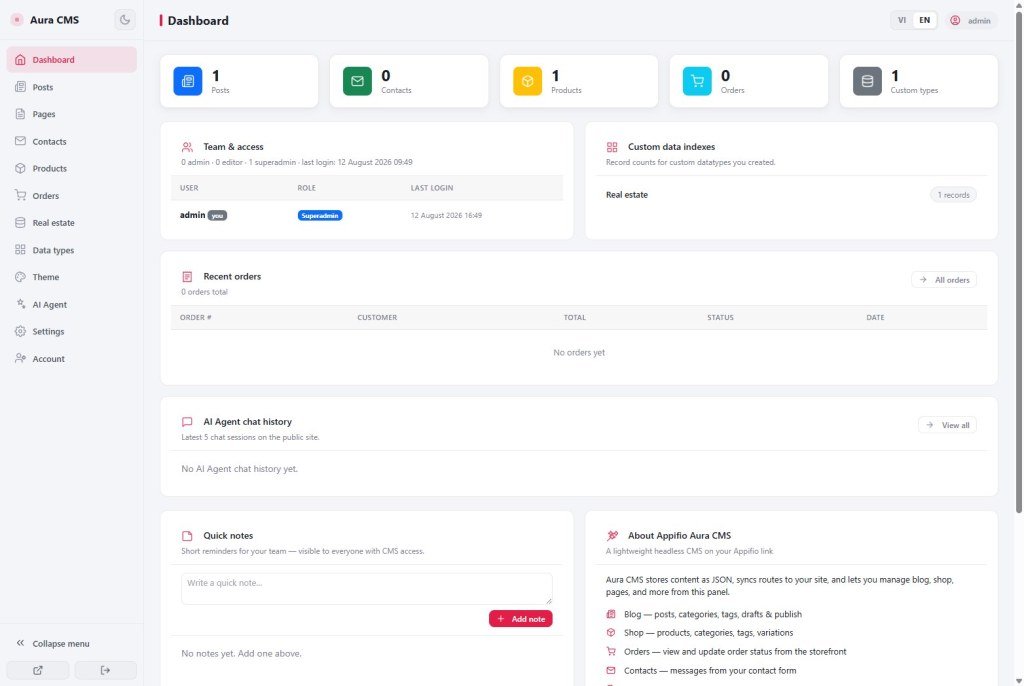
→ Dashboard shows Posts/Contacts/Products/Orders stats + Groups & access
Next visits
→ Form becomes normal "Sign in" (Username + Password)
2. Glossary
| Term | Meaning | Where in the UI |
|---|---|---|
/your-link-name/cms | Fixed URL for the Aura CMS panel - replace with your app slug on Appifio | Browser - after the app domain |
| First-time setup | Badge only when the app has no admins yet | CMS login screen |
| Overview (Dashboard) | CMS home: content stats, access groups, quick notes | Nav "Overview" |
| login.json | System file for admin accounts - shared by CMS and app admin pages (F03) | Hidden - manage via login only |
| Create account & enter CMS | Button that finishes first-time superadmin bootstrap | "First-time setup" form |
3. First-time setup steps
- In the browser, open your app URL with
/cmsat the end, e.g.https://yourapp.appifio.com/cms. - On first visit you’ll see badge "First-time setup" and: "First visit - create the main administrator (superadmin) for this website/app."
- Enter Username (3-50 chars: letters/digits/underscore/hyphen/dot), Password (min 6 chars), Confirm password.
- Click "Create account & enter CMS". This account is automatically superadmin - no role picker.
- You land on Overview. Note the left nav: Overview, Posts, Pages, Contacts, Products, Orders, Data types, Appearance, AI Agent, Settings, Account (some items may hide by role).
- Toggle light/dark with "Light / Dark" on the nav; use "Collapse menu" to save space.
4. Navigation map
| Nav item | Use for | Related lesson |
|---|---|---|
| Overview | Stats + quick team notes | G01 |
| Posts / Pages | Blog, static pages | G02 |
| Contacts / Products / Orders | Shop ops, customer care | G03 |
| Data types / Appearance | Custom entities, apply theme | G04 |
| AI Agent | Public visitor chatbot + CMS Agent in the panel | G06 · G07 |
| Settings / Account | Site mode, users, MCP, personal profile | G05 |
5. Compared with other tools
- WordPress wp-admin: similar dedicated content panel; Aura CMS is lighter, no plugins to install.
- Strapi / headless CMS: similar entity-manifest idea (G04), but Aura CMS sits inside Creator - no separate server.
- Shopify Admin: similar Products/Orders/Contacts nav; Aura CMS is simpler for small shops.
6. Security
- Superadmin bootstrap works once - after an admin exists, CMS always shows "Sign in", never the setup form.
- Set a strong superadmin password from day one - full power, including adding/removing other accounts.
- Too many failed logins → temporary rate limit - wait, then try again.
7. Technical limits
You can
- Open CMS after at least one Save changes
- Bootstrap superadmin once
- Light/dark toggle, collapse menu
Limits
- No automatic “forgot password”
- CMS reads live - unpublished drafts won’t fully appear
- Full entities need Advanced backend (F01)
8. Common issues
| Situation | Fix |
|---|---|
| /cms is blank or 404 | Confirm at least one Save changes in Creator - CMS runs on live |
| Forgot the only superadmin password | No forgot-password button - use Backend → Admin Management, or ask AI to reset via updateAdmin if another account exists |
| Still shows “First-time setup” on return | Previous create may have failed - try again; if it loops, check storage connectivity |
9. Tips
- Store the superadmin credentials safely as soon as you create them - often the only account at first.
- When handing the app to a client, create a separate admin account - don’t share your superadmin.
- Read “About Appifio Aura CMS” on Overview (first visit) for a quick tour of the main areas.
10. Self-check
- Can you open
/your-link-name/cmsand create the first superadmin? - Can you name 8-9 left-nav items?
- Do you know why CMS needs Save changes from Creator first?
Next lesson
G02 - Manage Posts & static Pages
Start publishing real content: blog posts, categories/tags, and static pages.
Internal navigation (same language)
Appifio Creator · User guide · G01
