
- End-to-end workflow
- Glossary
- Steps
- Step 1 - Open "Prompt & Skills" → "Build AI prompt"
- Step 2 - Optimize with "Analyze Brief" or "Rewrite AI"
- Step 3 - "Save & Enable this AI profile"
- Step 4 - Subtab "Your custom prompt/skill" (skip AI analysis)
- Step 5 - "Appifio prompt template" or "Community Prompt Library" (optional)
- Step 6 - Project profile (Project specification) - fill it out
- How layers combine in one chat request
- Compared with Cursor Rules & ChatGPT Custom Instructions
- Technical limits
- Common issues
- Practical tips
- Self-check
Appifio Creator · Lesson B06 · Beginner
and Project profile
Use the "Prompt & Skills" tab to store how the AI should work (tone, skills, constraints), and "Project profile" for brand/product facts - both inject into every AI request so you do not re-explain from scratch each chat.
Learning goals: Create and enable an AI Prompt profile for the project, separate Prompt Studio (how the AI replies) from Project profile (product/brand facts), and avoid conflicts when multiple profiles are on.
Reading time: about 14 minutes
Prerequisites: Chat modes (B05).
Previous lesson: B05 - AI modes
Next lesson: C01 - Preview workspace: Standard vs Canvas
End-to-end workflow
Glossary
| Term | Meaning | Where in the UI |
|---|---|---|
| AI Prompt profile | Tone/skill/constraint instructions the AI must follow when replying | "Prompt & Skills" tab |
| Project profile (Project Spec) | Product facts: brand, colors, fonts, description - not how the AI talks | "Project profile" on the chat panel |
| Analyze description | AI reads your rough description and extracts a structured prompt | "Analyze description" |
| Rewrite AI | AI rewrites/tightens an existing prompt | "Rewrite AI" |
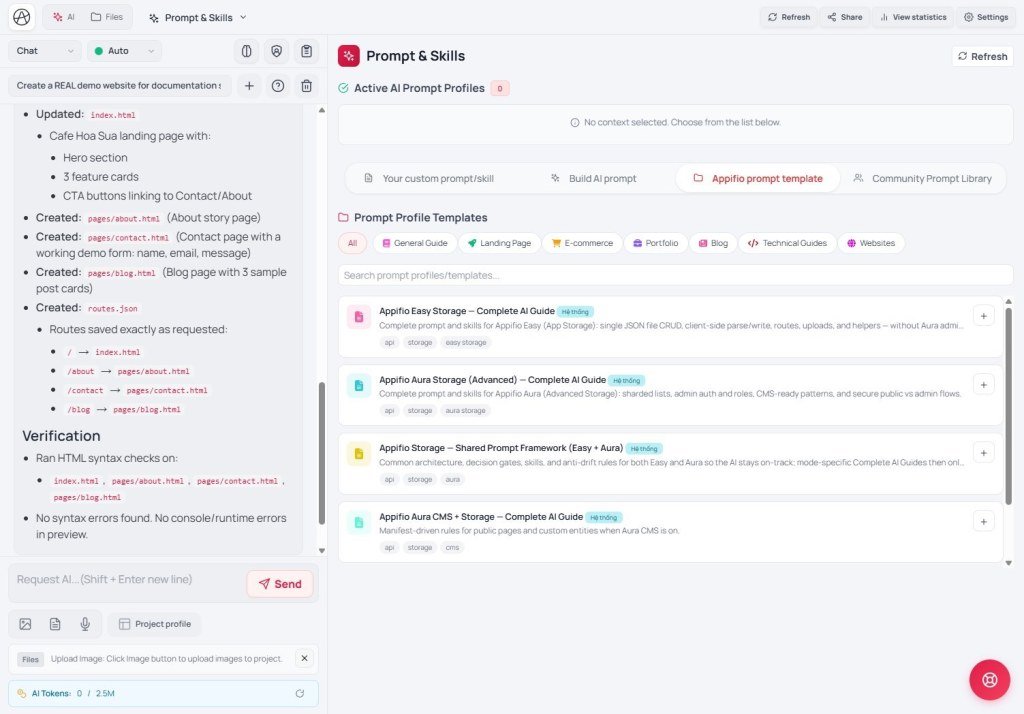
| Active profile | Profile auto-injected into every AI request in the chat | "Active AI Prompt profiles" |
Steps
Step 1 - Open "Prompt & Skills" → "Build AI prompt"
Open "Prompt & Skills", then subtab "Build AI prompt". The block title is "Build AI prompt (skill/tone/taste) from your brief". Fill:
- Profile name - placeholder like "Prompt profile name (e.g. Premium mobile UI tone)".
- Description - placeholder "Describe how the AI should reply/work (style, skills, constraints)…". Natural language is fine, e.g. "Write clean code, short English comments, prefer Bootstrap, professional tone for B2B clients".
Step 2 - Optimize with "Analyze Brief" or "Rewrite AI"
| Button | Use when |
|---|---|
| "Analyze Brief" | First rough draft - extract a structured prompt (skills, tone, style, constraints, output format) |
| "Rewrite AI" | You already have a prompt (yours or a template) and want it clearer/tighter |
The optimized result appears in the large block below. Edit by hand before saving if needed.
Step 3 - "Save & Enable this AI profile"
Click "Save & Enable this AI profile". The note under the button confirms: "When enabled, this profile is auto-injected into every AI request in this chat." It appears in "Active AI Prompt Profiles".
Step 4 - Subtab "Your custom prompt/skill" (skip AI analysis)
If you already know the exact instructions, open "Your custom prompt/skill" (section "Your Custom Prompt/Skill Profile"): name + content, then "Add Profile". It also lands in "Saved Prompt Profiles (view/edit/reuse)" - after edits, click "Update".
Step 5 - "Appifio prompt template" or "Community Prompt Library" (optional)
Subtab "Appifio prompt template" (section title "Prompt Profile Templates") - enable system Storage/CMS/MCP/Build guides. Subtab "Community Prompt Library" (with search) - start from a community profile instead of writing from scratch.
Step 6 - Project profile (Project specification) - fill it out
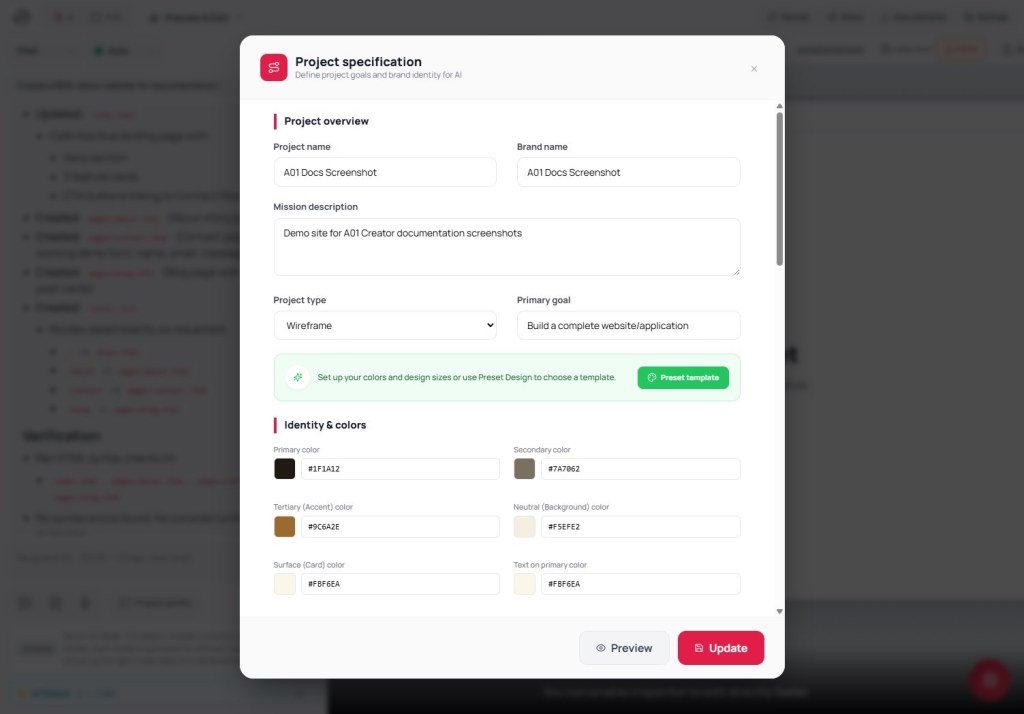
"Project profile" on the chat panel opens "Project profile (Project specification)" - subtitle: Define goals and brand identity for the AI. Data syncs to a README/spec-style file on the virtual disk; AI and Export APK/.afi read it. Click Update to save (Saving… → Saved successfully!).
A. Project overview
- Project name · Brand name · Mission · Primary goals
- Fidelity: Wireframe or High-fidelity
B. Identity & colors (design tokens)
- Primary · Secondary · Tertiary/Accent · Neutral/Background · Surface/Card · Text on primary
C. Typography · Radius · Spacing · Preset
- Tip: use Preset template → Choose design preset for a fast start.
- Specified fonts · sizes Display / H1 / Body / Label
- Corner radius S/M/L · Spacing S/M/L
D. Style · Assets · Preview
- Button / Card / Navbar style
- Logo URL · Figma/Design link · Requirements docs · Open Media Library
- Extra assets / Extra notes
- Preview in the modal demos buttons, type, cards, tabs, forms from your tokens.
Quick distinction: Prompt Studio = "how the AI should write/speak". Project profile = "what the product/brand/design tokens are". Long profiles cost tokens on every Send (T11). Export pulls App name/Logo from here (E04).
How layers combine in one chat request
When you send from "Ask AI…", Creator stacks context before calling the model: (1) every active AI Prompt profile, (2) Project profile if filled, (3) the selected chat mode (B05), then (4) your message. So (1) and (2) affect every later message - disable unused profiles.
Compared with Cursor Rules & ChatGPT Custom Instructions
| Tool | Closest to Prompt Studio |
|---|---|
| Cursor IDE | Rules / AGENTS.md - fixed guidance injected into every AI request in the project |
| ChatGPT | Custom Instructions - fixed notes about you and how you want replies |
| Appifio Creator | Multiple profiles you can enable/disable per project - more flexible than one fixed block, easier to forget which are on |
Technical limits
You can
- Save many Prompt profiles; enable/disable independently; Analyze / Rewrite
- Project profile: colors, type, spacing, radius, style, presets, design-system preview
- Attach Logo/Docs via Media Library; Export/.afi reads App name from the profile
You cannot
- Get an automatic warning when two active profiles contradict each other
- Avoid token cost - longer profiles cost more on every request
- Scope Project profile per page/route - it is one shared block
Common issues
| Issue | Fix |
|---|---|
| AI tone suddenly changes | Check "Active AI Prompt profiles" - an old profile may still be on; click "Disable this AI profile". |
| No profile active | If you see "No AI prompt profile enabled…", pick a saved profile or one from Templates/Community and enable it. |
| Edited a saved profile but it did not apply | After editing a custom profile, click "Save changes" in Prompt & Skills - not the site-wide "Save changes". |
Practical tips
- Keep only 1-2 AI Prompt profiles active; more invites conflicting constraints that are hard to spot.
- Fill Project profile early (brand, colors, fonts) so later UI generation (B02-B04, C*) stays consistent.
- Run "Analyze description" first, review, then optionally "Rewrite AI" once - avoid rewriting while still drafting by hand.
- Name profiles by purpose (e.g. "Sales landing tone") so you can reuse them later.
Self-check
- How do Prompt Studio and Project profile differ?
- Have you created and enabled at least one of your own AI Prompt profiles?
- Do you check "Active AI Prompt profiles" before a new AI task?
- Have you set Primary/Secondary + fonts, clicked Update, and tried Preview / Preset template?
- Have you attached a Logo (Media Library) if you need Export/.afi?
Next lesson
C01 - Preview workspace: Standard vs Canvas
Group C: preview in two display modes, zoom, and why Android Mock temporarily locks Canvas.
Internal navigation (same language)
Appifio Creator · User guide · B06 · Based on Prompt Studio and Project profile product behavior
