
- 1. Lifecycle of one change
- 2. Glossary - Current / Changes
- 3. Current vs Changes - four common situations
- 4. A safe working routine
- 5. Features that sit next to Current / Changes
- "File changes" bar
- Diff viewer (Compare changes)
- How this relates to Versions and Checkpoint
- 6. Similar ideas in other tools
- 7. Technical limits - what you can and cannot do
- 8. Security notes about drafts
- 9. Common issues
- 10. Practical tips
- 11. Check that you understand A03
Appifio Creator · Lesson A03 · Level: Beginner
(draft vs live)
This is the most important idea in the whole guide. Once it clicks, you stop worrying that every AI edit or Inspector tweak will break the live site.
Learning goals: Tell draft (virtual disk) from live; compare the two tabs; use "Save changes" / "Discard" correctly; know when the AI can edit and when you must Save first.
Reading time: about 15 minutes.
Prerequisites: A01 and A02.
Previous lesson: A02 - Opening Creator for the first time.
Next lesson: B01 - First AI chat: write a prompt that produces a full page.
Key UI labels you will see:
1. Lifecycle of one change
2. Glossary - Current / Changes
| Term | Meaning | Where it appears in the UI |
|---|---|---|
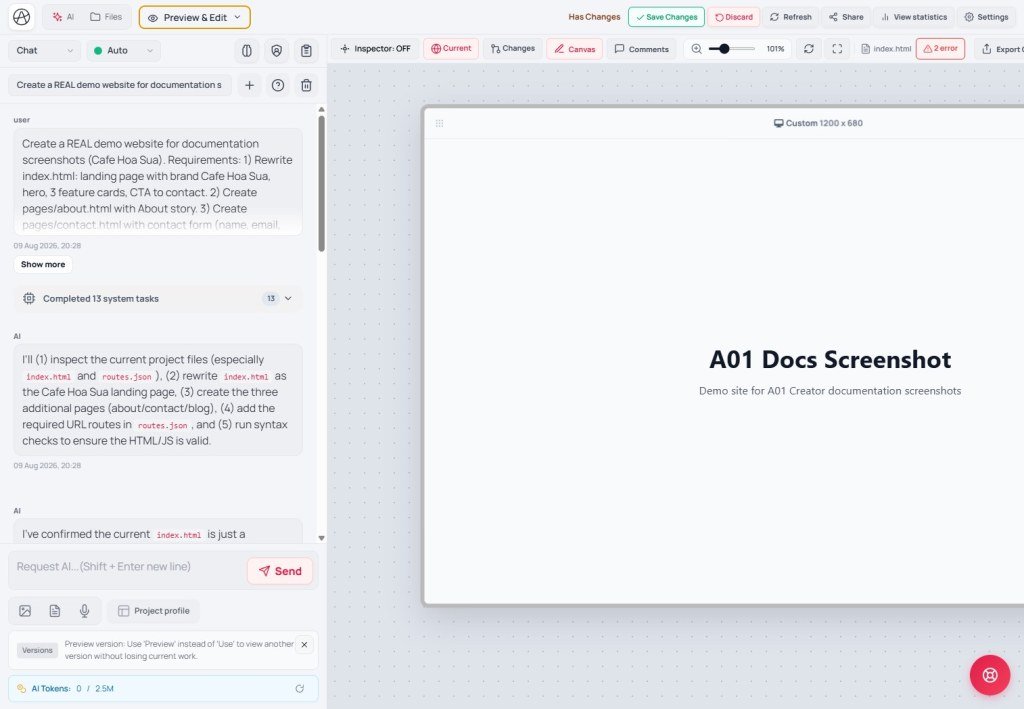
| Current | Reads from the publicly saved site files. The AI cannot write here directly | "Current" in "View & edit" |
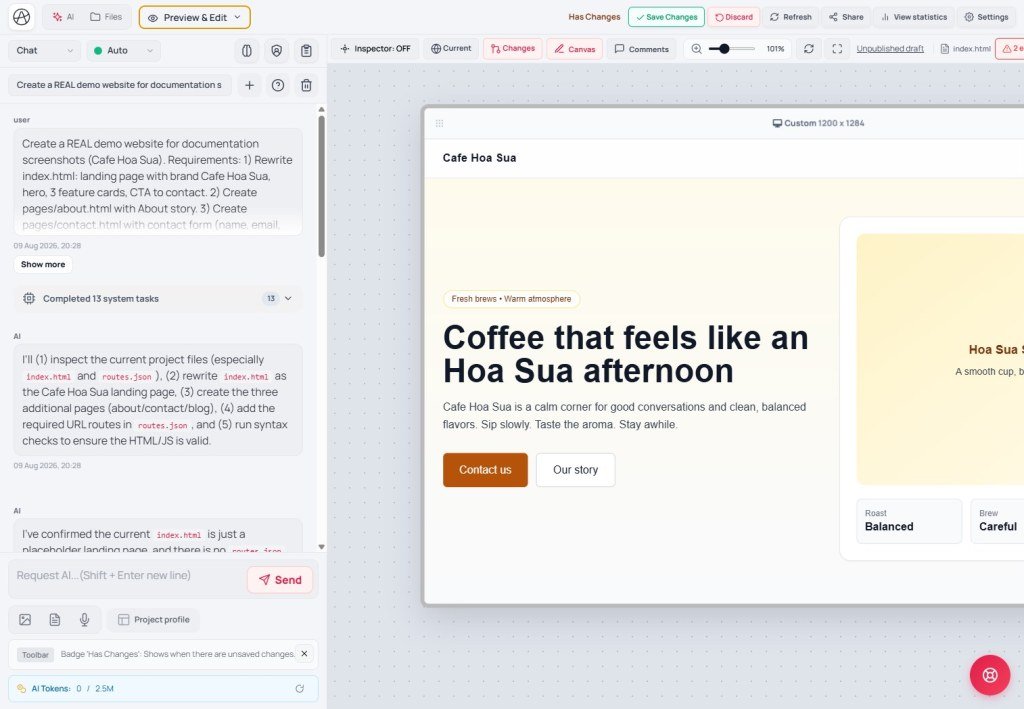
| Changes | Reads from the virtual disk (unsaved draft). The AI can write here | "Changes" in "View & edit" |
| Unsaved changes | Badge that unsaved content exists | Next to "Save changes" on the toolbar |
| Save changes | Writes the whole virtual disk to the live site | Primary button, nút trên thanh công cụ Creator |
| Discard | Deletes all unsaved edits and restores Current | Outlined button, nút trên thanh công cụ Creator |
| FS revision / Site online | Each Save (and some live writes) can bump FS revision. Site online (link settings) strengthens warnings when a session lags live - see Versions (E01) | Versions banner · Online/Offline settings |
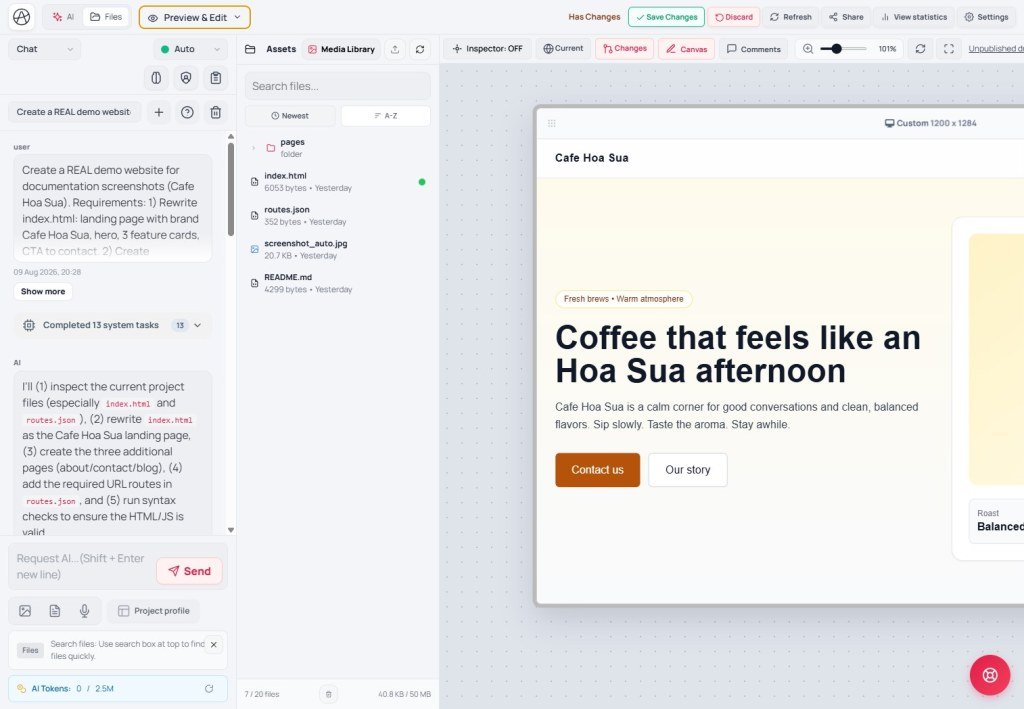
| Modified file | Green dot on a file in the Files tree - edited but not saved yet | File tree, "Files" tab |
| Unpublished draft | A shareable link to preview Changes before Save | Label in the preview Share area |
| Virtual disk | Temporary store for every file you are editing, fully separate from the public saved files | Not shown directly - backing store for the Changes tab |
3. Current vs Changes - four common situations
Think of the two tabs as two photos: Current is the print on the wall (what visitors see); Changes is the print on your desk (only you see it until Save).
| Situation | How the tabs differ | What you should do |
|---|---|---|
| You just asked AI to recolor the CTA button | Changes shows the new button · Current still has the old color | Review Changes → if you like it, Save changes. Visitors see nothing new until you Save. |
| Live site is broken; you fixed it on the draft | Current is still broken · Changes is fixed | This is when you Save - push the fix so visitors see the good build. |
| AI made a bad edit; Changes preview is blank/broken | Changes is broken · Current still works | Relax - visitors still see Current. Ask AI to fix Changes, or click Discard to drop the draft. |
| Both tabs look identical | No real edits yet, or the AI did not write files | Check the "Unsaved changes" badge and the File changes panel. If the count is 0, the AI may have replied in words only. |

4. A safe working routine
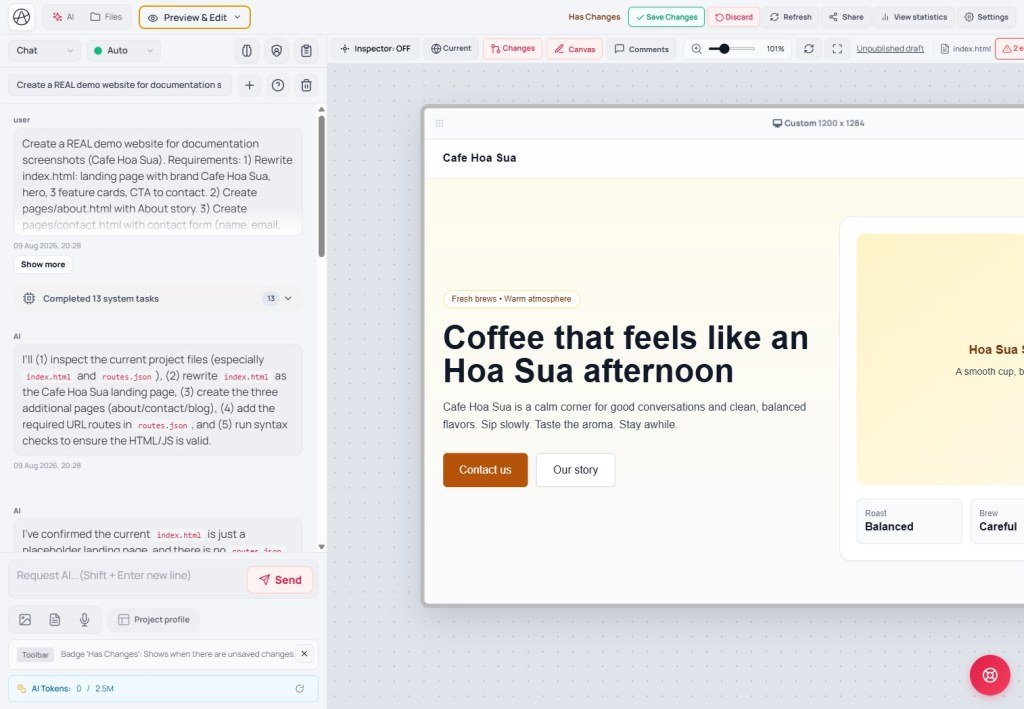
- Step 1 - Notice that edits exist: after AI or Inspector finishes, look at the top toolbar - the "Unsaved changes" badge appears next to "Save changes".
- Step 2 - Open the draft: go to "View & edit", click "Changes" to see what was just edited (from the virtual disk).
- Step 3 - Compare with live: click "Current" to see what visitors see, then compare.
- Step 4 - Act on errors: if "Current" is broken but "Changes" is fine → click "Save changes". If "Changes" is broken → keep asking the AI there (that is the only place it can edit).
- Step 5 - Optional per-file check: open "Files", find green-dot files ("Modified file - click to view diff") and inspect what changed.
- Step 6 - Keep refining with Inspector if needed: Inspector only works on the "Changes" tab (if you try "Current" while Changes exists, you get: "Inspector does not work on the 'Current' tab when a 'Changes' tab exists").
- Step 7a - Publish: when happy, click "Save changes". You should see "Changes saved!" or "Saved: {saved} files".
- Step 7b - Or discard everything: if you want to start over, click "Discard", confirm "Discard all unsaved changes?", then see "Changes discarded".
5. Features that sit next to Current / Changes
"File changes" bar
Above the chat panel, a bar shows how many files were edited: "File changes ({count})". Click it for a per-file list with character adds/deletes ("{count} characters added" / "{count} characters removed"). If nothing changed, it shows "No modified files in this session".
Diff viewer (Compare changes)
Opening a file diff shows "Compare changes:" with green Added (+) and red Removed (-) lines. Navigation includes "Previous change" / "Next change" / "Latest change", plus "Apply change" to accept a hunk.
Each hunk can also be "Accept this change" / "Reject this change" on its own - useful when the AI touched many places and you only want to keep some of them.
How this relates to Versions and Checkpoint
"Discard" only clears unsaved edits - it does not undo earlier "Save changes" actions. To go back to an older saved point, use a Checkpoint (tied to an AI message, lesson E02) or another Version (lesson E01). Before a large change that may need several Saves, create a Checkpoint or Clone version first.
6. Similar ideas in other tools
| Tool / concept | Similar mechanism | How Creator differs |
|---|---|---|
| Git (working tree / commit) | Working directory ≈ uncommitted, like "Changes" | Creator has no fine-grained commit history - Checkpoint/Versions are coarser and do not replace a full git log |
| WordPress (Draft / Publish) | Draft ≈ "Changes"; Publish ≈ "Save changes" | WordPress drafts one post at a time; Creator applies the model to the whole site file set at once |
| Google Docs (Suggesting) | Suggesting mode shows adds/deletes before accept | Creator’s diff viewer works at code level (HTML/CSS/JS) with Accept/Reject per hunk |
7. Technical limits - what you can and cannot do
You can
- Preview as many times as you want before Save or Discard.
- Accept or reject individual hunks in the Diff viewer - not all-or-nothing.
- Share the draft via an "Unpublished draft" link for review before Save.
You cannot / still limited
- "Discard" clears the whole virtual disk - there is no per-file Discard inside Changes.
- Inspector cannot edit "Current" while a "Changes" draft also exists.
- After "Save changes", you cannot Discard that save - only edit further or restore via Versions/Checkpoint.
8. Security notes about drafts
- An "Unpublished draft" link lets anyone with the URL see Changes - send it only to reviewers; do not post it publicly.
- Sensitive draft content (unreleased pricing, internal notes) is still visible through that link - think before sharing widely.
9. Common issues
| Situation | What to do |
|---|---|
| Accidentally clicked "Discard" and lost recent edits | Discard cannot be undone - redo the work. Next time, create a Checkpoint/Clone version before big edit passes. |
| No "Unsaved changes" badge after asking the AI to edit | Check whether the AI actually wrote files (look for errors in chat); click "Reload" on the preview to sync state. |
| "Current" and "Changes" look the same; unclear which is active | Check which control is active/highlighted on the "View & edit" bar; if unsure, open the Diff viewer to confirm real differences. |
| Inspector says it does not work on the Current tab | Switch to "Changes" before using Inspector - this is by design, not a bug. |
10. Practical tips
- Habit: after every AI reply, skim the "Changes" tab before sending the next prompt - avoid stacking edits on top of a broken previous result.
- Use "File changes ({count})" to see exactly how many files the AI touched - useful when you suspect unrelated files were edited.
- Before Saving a large pass, open the Diff viewer and accept/reject hunks instead of Saving everything blindly.
- Treat "Save changes" as hard to reverse in detail - always check Standard and Canvas/Mobile first.
11. Check that you understand A03
- Which build can the AI write to - "Current" or "Changes"? Why?
- How do "Save changes" and "Discard" differ, and what are the consequences?
- Why does Inspector refuse the "Current" tab when "Changes" exists?
- What does the Diff viewer help you do before Save?
- What is an "Unpublished draft" for, and what security caution applies?
Next lesson
B01 - First AI chat: write a prompt that produces a full page
You will learn how to write effective prompts, pick the right chat mode, attach images/docs, and read AI replies so you know when to check the "Changes" tab.
Internal navigation (same language)
Appifio Creator · User guide · A03 · Based on Creator preview, diff, and toolbar product behavior
