
- 1. Step map - the standard Creator workflow
- 2. Terms you will meet from the next lesson onward
- 3. First look - six steps to orient yourself
- 4. The five pillars of Appifio Creator
- ① AI Agent (+ Prompt Studio)
- ② Preview workspace (Standard & Canvas)
- ③ Inspector - edit HTML on the preview
- ④ Aura Backend Storage
- ⑤ Aura CMS & Aura MCP
- Creator UI map (main tabs)
- Pick a path by the product you want to build
- Extended lesson groups (already available)
- 5. How it compares to well-known tools
- 6. Technical limits - what it can and cannot do
- 7. Security basics to know from day one
- 8. Common issues when you are new
- 9. Practical tips
- 10. Check that you understand A01
Appifio Creator · Lesson A01 · Level: Beginner
and a map of the main features
By the end of this lesson you will know what Creator is, how its five working areas fit together, and which learning path to follow for a biolink, landing page, website, or webapp - even if you do not write code.
Learning goals: Name what each Creator area is for, understand draft vs live, and pick the right follow-up lessons for the product you want to build.
Reading time: about 15-20 minutes.
Prerequisites: An Appifio account and access to the link/app you want to edit. No coding background required.
Previous lesson: None - this is the first lesson in the guide.
Next lesson: A02 - Opening Creator for the first time (Welcome, Session, Loading).
Key UI labels you will see:
1. Step map - the standard Creator workflow
Later lessons point back to these five steps. Learn this skeleton before you go further:

That flow is enough for biolinks and landing pages. Multi-page sites also need Routes. Webapps with forms or orders also need Backend plus Aura CMS.
2. Terms you will meet from the next lesson onward
| Term | Meaning | Where it appears in the UI |
|---|---|---|
| Preview workspace | Teaching name for the page preview area with Standard and Canvas modes (the product UI often says "Preview") | "View & edit" tab |
| Standard | A single iframe preview with simple zoom | Toggle in "View & edit" |
| Canvas | Pan/zoom artboard with side-by-side breakpoints (Desktop · Tablet · Mobile) | Toggle in "View & edit" |
| Current | The last saved / live build on the server - what visitors see | "Current" control in "View & edit" |
| Changes | The draft on the virtual disk; AI and Inspector write here only | "Changes" control in "View & edit" |
| Virtual disk | Temporary storage for unpublished edits | Behind the "Changes" tab |
| Unpublished draft | A shareable link so others can review Changes before you Save | Label in the preview sharing area |
| Inspector | Click-to-edit on the preview (text, images, CSS, blocks) | "Inspector" in "View & edit" |
| Layers | Element tree for selecting nested nodes quickly | "Layers" next to Inspector |
| Save changes | Push the draft live so visitors see the new version | Primary button on the top toolbar |
| Discard | Throw away the entire draft and restore the last saved state | Button next to "Save changes" |
| Aura CMS | Separate content admin panel, outside Creator | URL like /your-link-name/cms |
| Aura MCP | Bridge so an external IDE (Cursor, etc.) can edit the app sandbox | "MCP" tab |
3. First look - six steps to orient yourself
You do not need to change anything in this lesson. Follow these six steps so A02 does not feel unfamiliar.
- Step 1 - Open the link you want to edit: from your Appifio link list, open the app/site editor and wait until "Loading Appifio Creator" finishes.
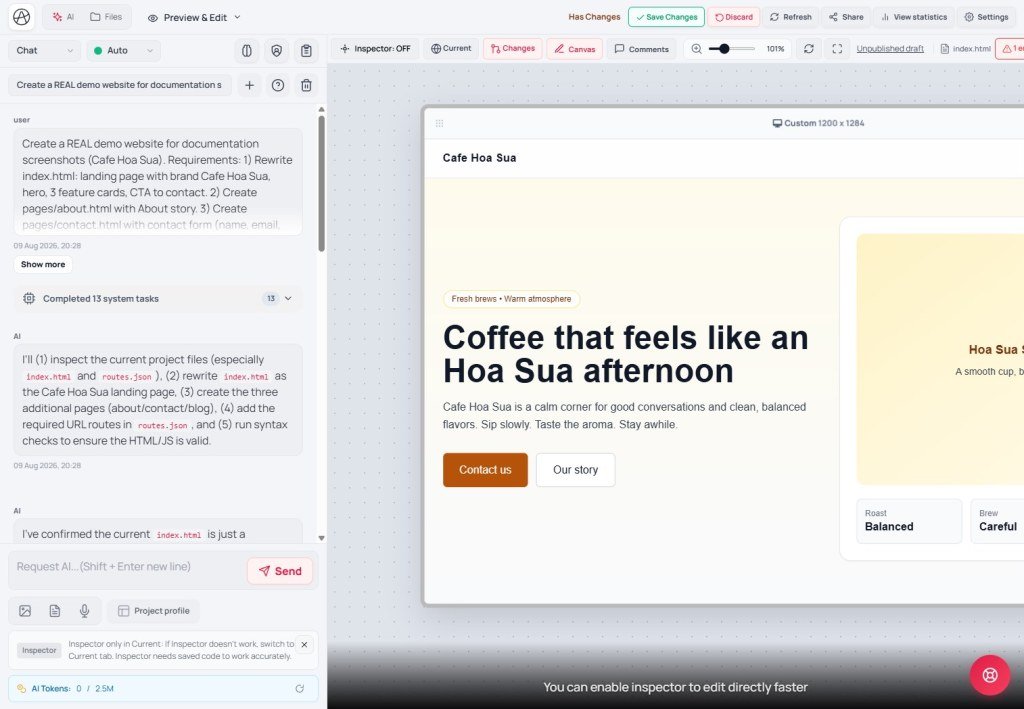
- Step 2 - Notice the chat panel on the left: find the input with a placeholder like "Ask AI… (Shift + Enter for a new line)" and the "Send" button. That is how you talk to the AI.
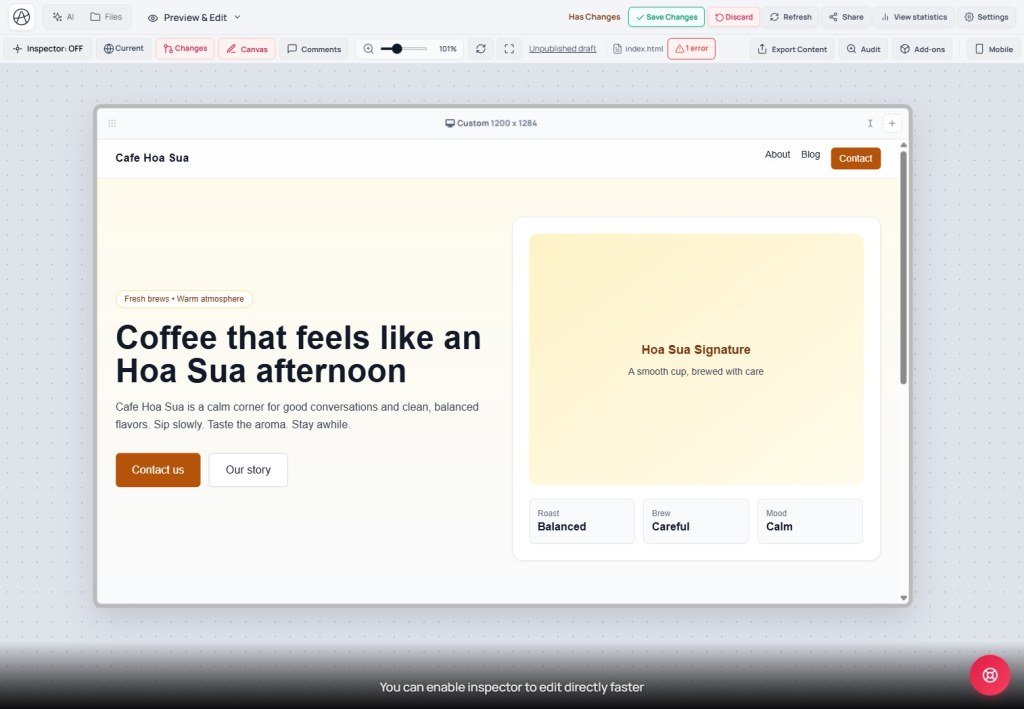
- Step 3 - Open the "View & edit" tab: find "Current" / "Changes" and the "Standard" / "Canvas" modes on the preview toolbar.
- Step 4 - Try "Inspector": hover elements on the preview and watch the highlight - no edits yet; just locate the control.
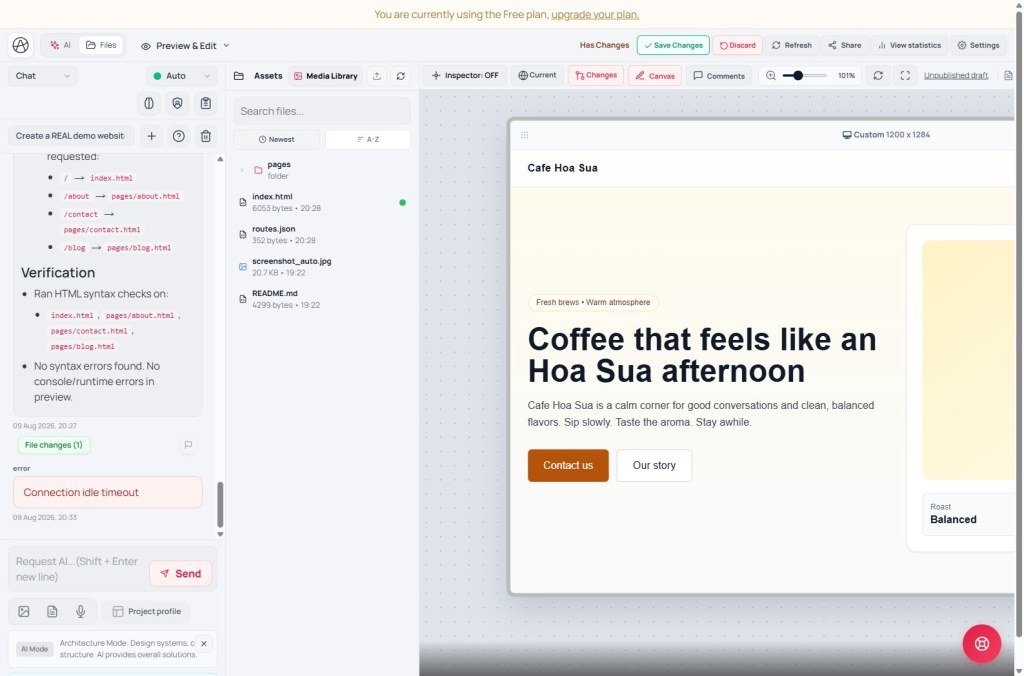
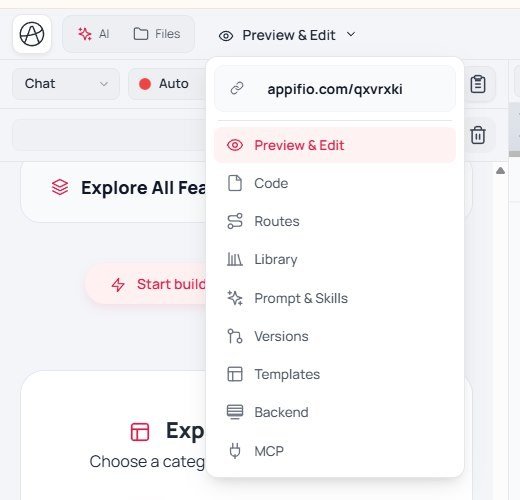
- Step 5 - Skim the remaining tabs: Files, Code, Routes, Libraries, Prompt & Skills, Versions, Templates, Backend, MCP - know where they live; you do not need to open them deeply yet.
- Step 6 - Check the top toolbar: find "Save changes" and "Discard" - the two controls every later lesson depends on.
4. The five pillars of Appifio Creator
Think of Creator as a workshop with five zones. You will not use every zone on day one - but you should know what each one is for.
① AI Agent (+ Prompt Studio)
The left-hand chat. You describe the work; the AI creates or edits HTML, CSS, JS, and data on the virtual disk. There are five modes: Chat, Coder, Debug, UI, Architecture - each tuned for a different kind of task (lessons B01 and B05 go deeper).
The "Prompt & Skills" tab stores how you want the AI to work so you do not re-explain every session. A project profile holds brand, colors, fonts, and product description.
② Preview workspace (Standard & Canvas)
The page preview area ("View & edit" tab). The product often says "Preview"; this guide calls it the preview workspace because the same content has two display modes:
| Mode | Use when | Traits |
|---|---|---|
| Standard | Quick single-frame review with simple zoom | One iframe; zoom roughly 0.3×-3× |
| Canvas | Responsive design; compare desktop / tablet / phone | Artboard; pan + zoom (Ctrl/Meta + scroll); default breakpoints Desktop 1200 · Tablet 810 · Mobile 390; custom breakpoints 320-1920px |
The same toolbar also covers Current/Changes, Notes (comments), Export, Audit, and Android Mock (when Android Mock is on, Canvas is temporarily unavailable).
③ Inspector - edit HTML on the preview
Turn on Inspector in the preview workspace, hover, and click. You can:
- Change text, links, and images
- Adjust CSS, spacing, and style presets
- Browse the Layers tree
- Insert blocks (buttons, columns, tables, callouts…)
- Pull samples from the library / ask AI to generate a block
- Drag-and-drop, undo / redo
Important: Inspector only works on the "Changes" tab when a draft exists, or on "Current" when there is no draft yet. If both tabs exist, Inspector is locked on "Current" (lesson C03 covers this in detail).
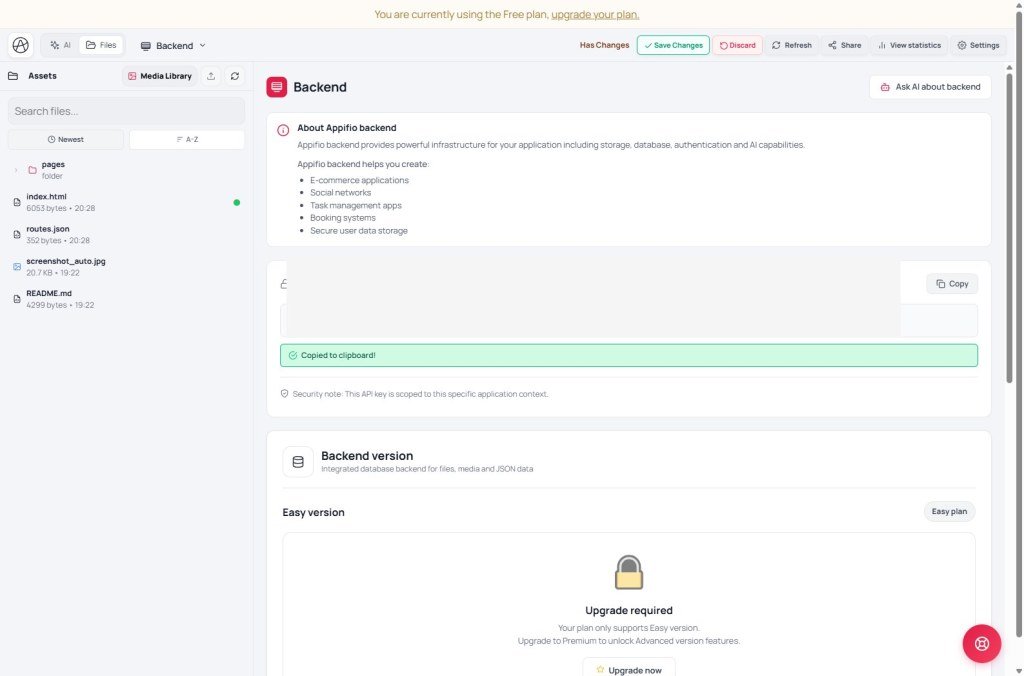
④ Aura Backend Storage
Your app’s data and file store. The Backend tab shows the API key, lets you choose Easy or Advanced, and surfaces JSON data, secrets, and app admin accounts.
Running apps use the built-in SDK (window.appifio, injected for you) to read/write data, upload files, manage routes, and handle admin login - you (or the AI) do not need to stand up a server from scratch. Details are in the F lesson group.
⑤ Aura CMS & Aura MCP
Aura CMS is a separate content admin at a URL like https://…/your-link-name/cms (replace your-link-name with the path you set on Appifio): posts, pages, contacts, products, orders, custom content types, theme, and site settings. Use it when the site shell already exists and you (or staff) publish day-to-day content without opening Creator.
Aura MCP connects Creator to an external IDE (Cursor, etc.): enable the gateway ("Enable MCP integration"), create a sandbox session ("Create / resume session"), "Create token", and "Download Appifio Aura MCP package (.zip)". The IDE AI edits the sandbox only; going live still requires "Save changes" in Creator. Aimed at advanced users (lesson H02).
Creator UI map (main tabs)
| Tab / area | What you do here | Related lessons |
|---|---|---|
| AI chat | Ask the AI to create/edit; attach images/docs; Checkpoint on AI messages | B01, B05, E02 |
| View & edit | Standard/Canvas preview; Inspector; Notes; Audit; Export | C01-C06, E05 |
| Files | HTML/CSS/JS/image tree; upload; soft/hard delete; media library; Photo Editor | D01, C06 |
| Code | Edit the selected file’s source when you need fine control | D04 |
| Routes | Map clean URLs (e.g. /blog/post-slug) to HTML files | D02 |
| Libraries | Enable/disable CDN libraries (Bootstrap, icons, charts…) and fonts | D03 |
| Prompt & Skills | Prompt Studio - AI behavior profiles | B06 |
| Versions | Create with "Create new (Clean)" / "Create new (Clone)"; switch, view, or delete versions | E01 |
| Templates | Apply a starter template - warning: wipes project files, URL routes, and temporary project data | B02-B04 |
| Backend | Aura Storage: key, Easy/Advanced, DB, secrets, admin | F01-F05 |
| MCP | Enable MCP, sandbox, token, download IDE config | H02 |
| Top toolbar | Save changes / Discard; help; token usage; Share; Settings | E03 |
Pick a path by the product you want to build
Biolink
A01 → A02 → A03 → B01 → B02 → C01 → C03 → E03
Landing page
A01 → B01 → B03 → C01-C03 → D01 → E05 → E03
Multi-page website
A01 → B04 → C* → D02 → F01 → G01-G02 → E03
Webapp (forms, shop, CMS)
A01 → B01 → F01-F03 → D02 → G01-G04 → H01 → E03
Full titles and summaries live in the Creator curriculum overview report (00-bao-cao-tong-hop-appifio-creator.md in the editorial folder).
Extended lesson groups (already available)
- T / K / X - core terms, deep techniques, troubleshooting (virtual disk, Routes, Export, CDN, MCP…).
- AS - Aura Storage · CMS · MCP via product UI (contact forms, posts, secrets, enable MCP…).
- AM / EM - published Storage API maps and examples (Easy / Advanced) for deeper work with AI.
- BR - operating model: Easy vs Aura, when and how to use the AI Agent.
- Export: distinguish .afi (full Creator environment; may include chat history) from ZIP (clean site source) - see lessons E04 / K11.
Boundary with Appifio platform help: Short links, plans, Pixels, Teams, Showcase… belong to account/Dashboard guides - they do not replace this Creator curriculum. For URL shortening, use the Short link help articles on Appifio.
5. How it compares to well-known tools
Creator does not try to clone one product. It combines an AI builder (like Lovable/v0), a visual editor (like Webflow), and CMS/publish (like WordPress) in one place.
| Tool | Their strength | How Appifio Creator differs |
|---|---|---|
| Webflow | Strong visual CSS editor, pixel-level control | Similar Inspector, plus AI that writes code directly and built-in Backend/CMS - no separate plugins required |
| Lovable / v0 | Very fast prompt-to-app codegen | Adds click-to-edit Inspector for non-coders, plus Aura CMS for day-to-day content after the app is live |
| Bubble | No-code app builder with strong visual database/logic | Appifio uses real HTML/CSS/JS (easier to export and reason about) and lets AI write logic instead of complex drag-and-drop workflows |
| WordPress | Huge theme/plugin ecosystem, mature CMS | Aura CMS is lighter and plugin-free; the trade-off is a much smaller theme/plugin catalog than WordPress |
6. Technical limits - what it can and cannot do
You can
- Build biolinks, landings, multi-page sites, and form/shop webapps with AI + Inspector - no local IDE install required.
- Preview across devices (Canvas) and edit without touching code (Inspector).
- Store data (Aura Storage) and manage content (Aura CMS) without running your own server.
- Connect an external IDE through Aura MCP when you want deeper code work (advanced).
You cannot / still limited
- It does not fully replace complex custom backends (microservices, queues, multi-gateway international payments…).
- APK export is still BETA (lessons E04, H03) - not ready for production use yet.
- With Android Mock on, Canvas cannot run at the same time.
- The AI Agent only edits the draft (virtual disk) - it never goes live by itself; someone must click "Save changes".
7. Security basics to know from day one
- The API key on the Backend tab is scoped to the app, but it still grants admin power for that app - do not share it publicly.
- Secrets (Backend tab) are the only place for sensitive keys; do not ask the AI to print secrets in chat or hard-code them into HTML/JS.
- An MCP token is shown in full only once when created - if it leaks, open the MCP tab and revoke it immediately.
- An "Unpublished draft" link lets outsiders review Changes before Save - share it only with people you trust; the content may be unfinished.
8. Common issues when you are new
| Situation | What to do |
|---|---|
| "I chatted with the AI but the live site did not change" | By design - the AI only writes to Changes. Open "View & edit", review the Changes tab, then click "Save changes" when you are happy. |
| Inspector does not respond to clicks | Confirm you are on the right Current/Changes tab for your draft state; try "Reload" on the preview, then click the element again. |
| Blank or broken preview after an AI edit | Compare Current vs Changes to see which build is broken; if Changes is wrong, ask the AI to fix it there; if you need a clean slate, use "Discard". |
| Worried about breaking the live site during a big experiment | Open Versions, create "Create new (Clone)" first, or add a Checkpoint right after the AI finishes a major step. |
| "Loading Appifio Creator" hangs or errors | Use "Retry" on the loading screen; if it still fails, reload the browser page (A02 explains the load phases). |
9. Practical tips
- Always think "Changes first, Save later" - experiment freely on the draft; Save only after you have checked Standard and Canvas/Mobile.
- Create a Versions Clone before every large change (new template, structural rewrite) - treat it as a free save point.
- Small edits (copy, image, one button color) → Inspector. Large work (new pages, structure, data logic) → AI Agent.
- You do not need all 32 lessons in numeric order - pick the product path in section 4 and learn those lessons first.
10. Check that you understand A01
If you can answer these without reopening the lesson, you are ready for A02:
- What is the difference between Changes and Current? Which one do visitors see?
- Which two modes make up the preview workspace? When should you use Canvas?
- How does Inspector differ from the AI Agent in day-to-day work?
- Where do you open Aura CMS (what kind of path), and how is it different from Creator?
- Are you building a biolink or a webapp - which lesson path will you follow next?
Next lesson
A02 - Opening Creator for the first time: Welcome, Session, Loading
You will walk through the loading screen, choose a work session when asked, and use Welcome cards / the template showcase when chat is empty - so your first Creator visit does not feel stuck.
Internal navigation (same language)
Appifio Creator · User guide · A01 · Based on Creator, Aura CMS, Aura Storage, and Aura MCP product behavior
