
- 1. End-to-end flow - first time opening Creator
- 2. Terms for Loading / Session / Welcome
- 3. Step by step - reading each screen
- 3.1 The "Loading Appifio Creator" screen
- 3.2 The "Choose a work session" dialog (when it appears)
- 3.2B When Site online - “session may be out of sync”
- 3.3 Welcome (when chat is empty)
- 4. Why these three screens exist
- Many load phases = Creator is a large module system
- Sessions follow browser/tab - why you get asked again
- Welcome only when empty - it does not nag existing projects
- 5. How onboarding compares elsewhere
- 6. Technical limits - what you can and cannot do
- 7. Security notes about work sessions
- 8. Common issues
- 9. Practical tips
- 10. Check that you understand A02
Appifio Creator · Lesson A02 · Level: Beginner
Welcome, Session, Loading
This lesson helps you read the three screens you meet as soon as you open Appifio Creator: the system loader, the work-session picker (when it appears), and Welcome when chat is empty - so you do not feel stuck or click the wrong action.
Learning goals: Understand the loading phases, know what to do when asked to choose a work session, and use Welcome correctly (cards, template showcase) when starting an empty app.
Reading time: about 12-15 minutes.
Prerequisites: A01 (the five pillars and draft vs live).
Previous lesson: A01 - Appifio Creator overview.
Next lesson: A03 - Understanding "Current" and "Changes".
Key UI labels you will see:
1. End-to-end flow - first time opening Creator
2. Terms for Loading / Session / Welcome
| Term | Meaning | Where it appears in the UI |
|---|---|---|
| Phase (load stage) | A batch of JS modules loaded in order (Core engine, Inspector, Library system…) | Small grid under the progress bar |
| Work session | A working copy tied to a browser/tab; each session has its own ID and data | "Choose a work session" dialog; "Versions" tab |
| Welcome | Start screen when the app has no content yet, suggesting how to begin | Center of the chat panel when it is empty |
| Site online | Live-site flag (Online/Offline in link settings). Online → stronger warnings when a session lags the live site | Link settings; Versions banner |
| Highlight cards | Six short feature cards on Welcome | Card grid at the top of Welcome |
| Explore Templates | Template categories (General, Business, Personal, Food & drink, Store, Catalog) | Lower part of Welcome / "Templates" tab |
| Apply design template | Applies UI shell only (HTML/CSS), without sample data | Button on a template card |
| Apply template + Data (Advanced) | Applies the UI shell plus sample Advanced database config (demo data) | Secondary button on a template card |
3. Step by step - reading each screen
3.1 The "Loading Appifio Creator" screen
Right after you open Creator you see a dark overlay titled "Loading Appifio Creator", a percentage bar, and status text like "Loading: {phase}…" walking through these stages in order:
- Core system
- Source analyzer
- Design tools
- Core logic
- UI components
- Inspector
- Navigation system
- Media management
- Library system
- Advanced tools
- Platform features
- Math utilities
When finished, the overlay shows "Done!" and disappears. If some files fail, you see "Failed to load {count} file(s)." with "Retry" and "View details". If a core library fails, you get "Critical error: Some core libraries could not load." - reload the whole browser page.
3.2 The "Choose a work session" dialog (when it appears)
Tip to reproduce the session chooser: in the browser Console run localStorage.removeItem('app_editor_session_id_' + LINK_ID) then reload Creator. With no stored session id and more than one session, the Choose Session modal appears; if Site online is on, you also get the live-site warning badge.
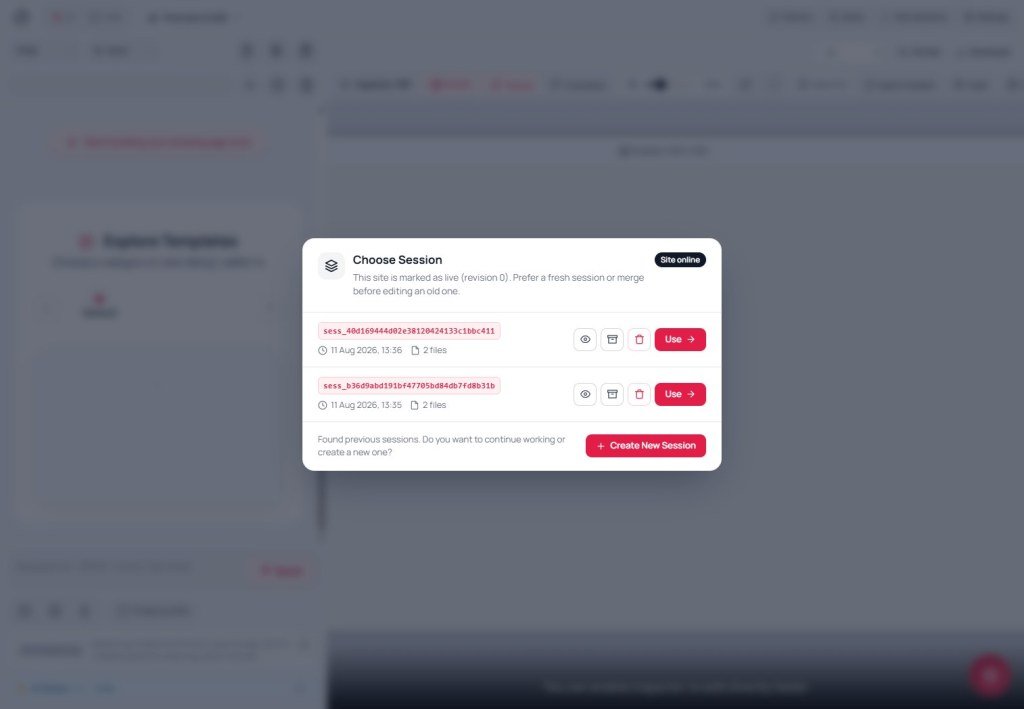
This dialog appears only when the system finds more than one earlier session for this app. The copy matches the UI:
"Choose a work session"
"Previous work sessions were found. Do you want to continue or start fresh?"
Each session shows: ID: session id · Created: creation time · Last activity: last edit, plus a "Use" button.
There is also a separate "Create new session" button if you want a clean start.
Picking the wrong one is not instantly destructive - you can manage sessions later in the "Versions" tab (lesson E01). But if unfinished work lives in an older session, choose "Use" on that session instead of creating a new one, so you do not lose prior work.
3.2B When Site online - “session may be out of sync”
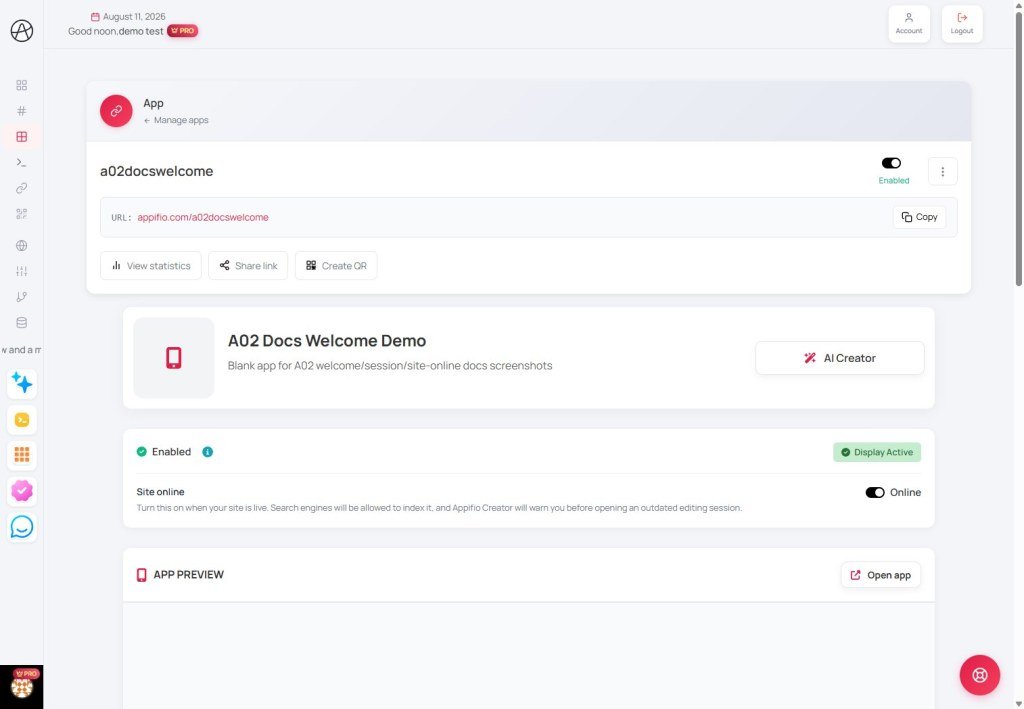
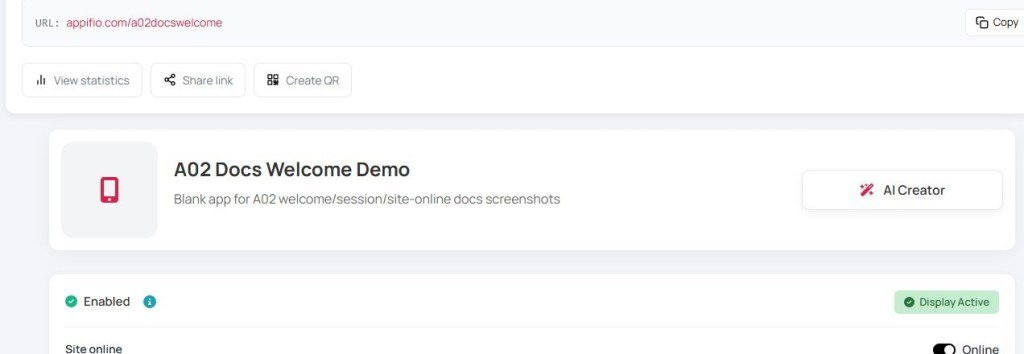
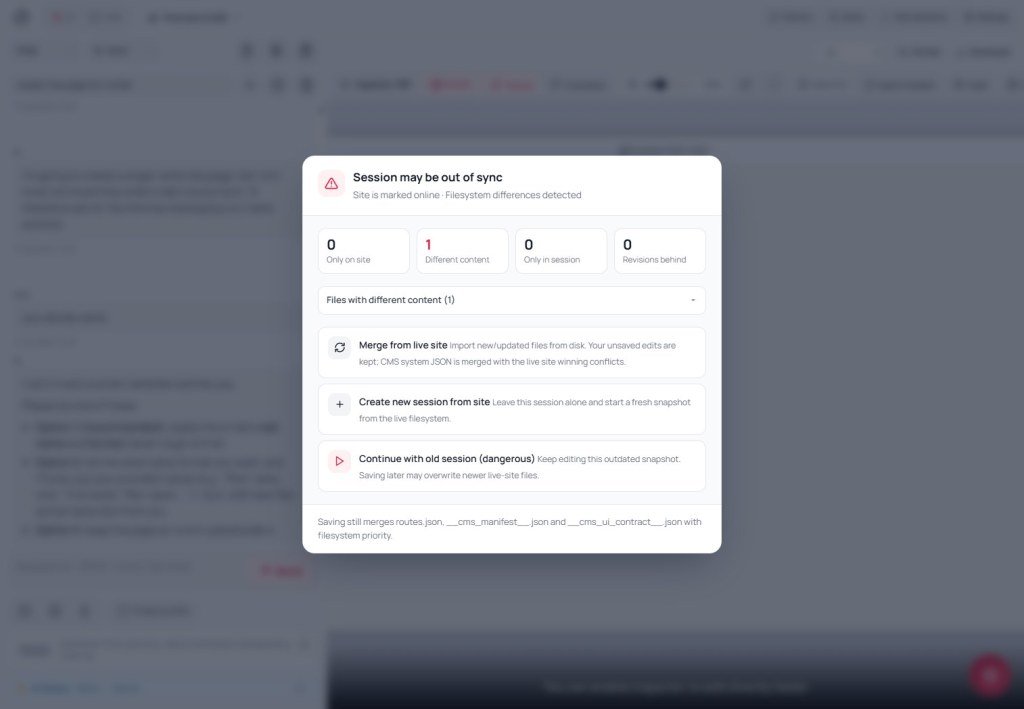
In link settings, turn Site online to Online when the site is live. Creator may then show a dialog like "Session may be out of sync" if you open a session older than the live filesystem.
- Merge from live site - pull live files into the session; keep your Unsaved edits.
- Create new session from site - leave the old session; start a fresh snapshot from live.
- Continue with old session - risky while Site online: a later Save may overwrite live with an older draft.
While Site is Offline (building), these warnings are relaxed - still check rev behind / Unsaved on the Versions tab (E01).
3.3 Welcome (when chat is empty)
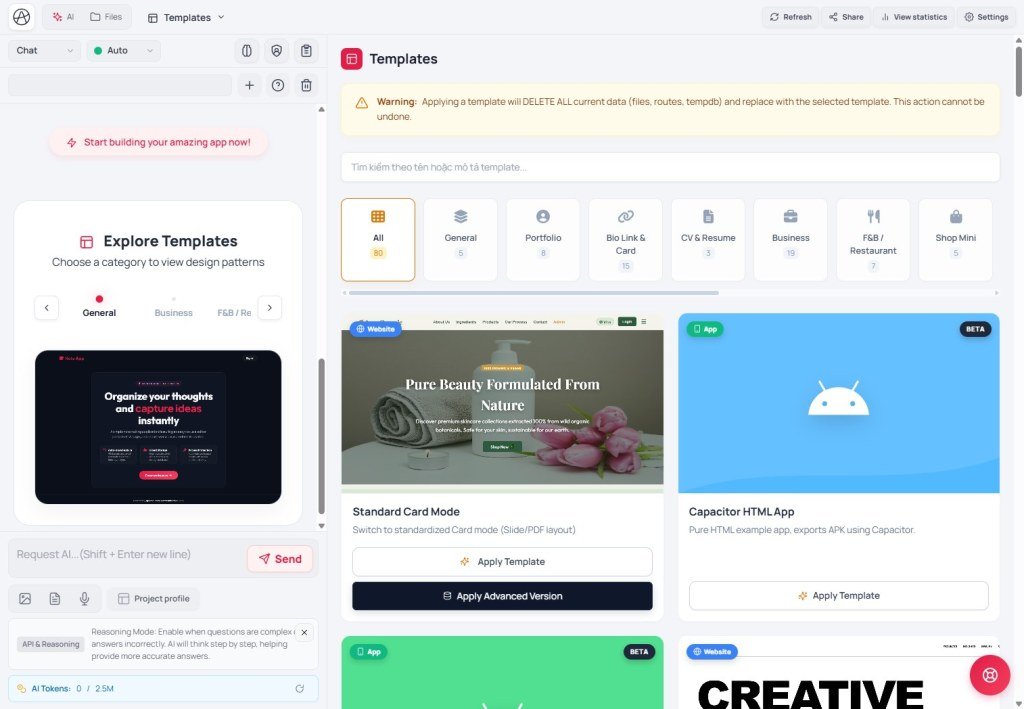
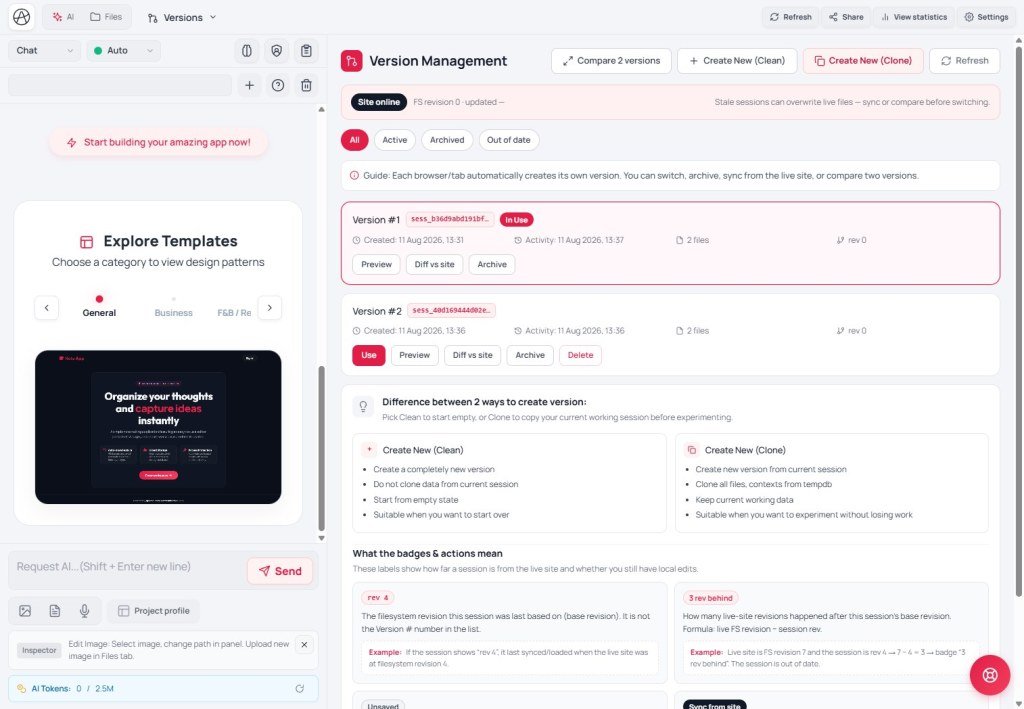
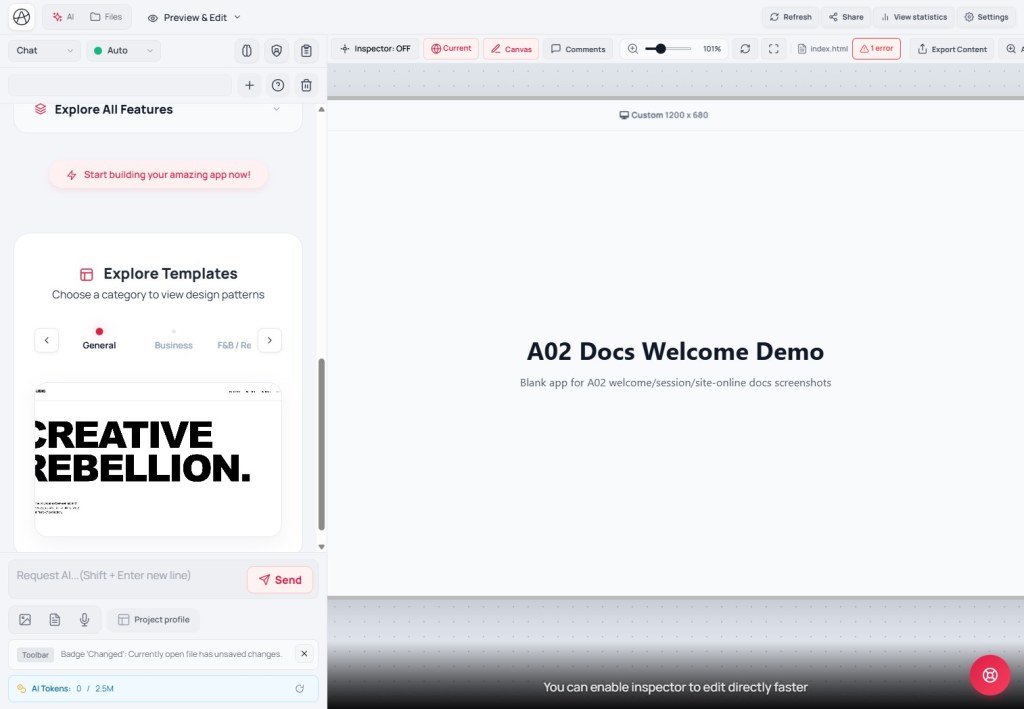
If the app has no content yet, the chat panel shows "Welcome to Appifio Creator" with a subtitle along the lines of: "A smart app development environment where your ideas become real in minutes." It has three areas:
- 6 highlight cards - each with icon + title + short blurb: AI Oversight Assistant, Template UI Library, Pro Photo Editor, Version Management, Instant Preview, Review Mode.
- "Explore all features" - expands seven deeper items: Multi-model AI coding, Smart layout & grid, Pro media library, Undo history, Code & SEO checks, Component management, Navigation & Backend.
- "Explore Templates" - pick a category (General, Business, Personal, Food & drink, Store, Catalog); each template has two actions: "Apply design template" (shell only) and "Apply template + Data (Advanced)" (shell + Advanced demo data).
At the bottom you may see a call to action like "Start building your app now!" - but you are not required to pick a template; typing a prompt in chat dismisses Welcome and starts immediately.
4. Why these three screens exist
Many load phases = Creator is a large module system
Creator is not a static page - it loads dozens of separate JS/CSS modules (chat, Inspector, canvas, media, routes…). Phases show which part is loading, and if something fails you know which area is affected (for example, a failure under "Inspector" may block Inspector while AI chat still works).
Sessions follow browser/tab - why you get asked again
Each browser/tab keeps its own working session so two people (or two tabs) do not overwrite the same draft. Opening the same app on another machine or in a private window may show "Choose a work session" again because the product cannot assume which session you want.
Welcome only when empty - it does not nag existing projects
Welcome is a starting point, not a repeating ad. Once the app has files/content, Creator goes straight to chat + View & edit. If you are editing an existing site and still see Welcome, you are probably on an empty session/version - check the "Versions" tab.
5. How onboarding compares elsewhere
| Tool | How they greet new users | How Appifio Creator differs |
|---|---|---|
| Wix ADI / Framer AI | Ask a few questions (industry, style) then auto-build a site | Creator stays freer: natural-language prompts or ready templates - no fixed wizard you must complete |
| WordPress | One-time install wizard (title, theme, plugins) | Creator Welcome is guidance only - every choice can be changed later with AI, Inspector, or the Templates tab |
| Notion / Linear (multi-device) | Realtime sync of one shared document everywhere | Creator keeps per-tab sessions/versions - flexible for experiments, but you must pick the session you intend to continue |
6. Technical limits - what you can and cannot do
You can
- Retry loading when some modules fail, without an immediate hard refresh ("Retry").
- Return to an earlier work session anytime via "Choose a work session" or the Versions tab.
- Skip Welcome entirely by typing a prompt - templates are optional.
You cannot / still limited
- You cannot reorder load phases - the sequence is fixed by the product.
- "Apply template + Data (Advanced)" configures Advanced database - switching back to Easy later is not trivial (lesson F01).
- Welcome does not reappear once the app has content - there is no manual "show Welcome again" button.
7. Security notes about work sessions
- The session ID appears in the picker - avoid posting screenshots publicly unless you know who can access your link/app.
- Applying a template (simple or Advanced) writes to the draft only - the live site is untouched until you click "Save changes" (lessons A03 / E03).
8. Common issues
| Situation | What to do |
|---|---|
| Loading sticks on one phase too long | Wait a bit (slow network); if nothing moves for about a minute, use "Retry" or reload the page. |
| "Failed to load {count} file(s)" | Open "View details" to see which modules failed, then "Retry"; if it repeats, check network or browser extensions that block scripts. |
| Clicked "Create new session" but meant to continue old work | Open "Versions", find the older session by Created / Last activity, and switch with "Use" (lesson E01). |
| Clicked "Apply template + Data (Advanced)" when you only wanted the UI | Until you Save, nothing is live - use "Discard" on the toolbar to drop the draft, or create a new Clone version and try again. |
9. Practical tips
- Brand-new users: prefer "Apply design template" (no data), then refine with AI/Inspector - safer than Advanced because it does not touch database config.
- Returning to an existing project: read "Choose a work session" carefully (especially Last activity) before "Create new session".
- Skim the 6 highlight cards and the 7 "Explore all features" items once so you know what exists - you do not need to memorize them; you only need to know where to look later.
10. Check that you understand A02
- Name at least four phases on the "Loading Appifio Creator" screen.
- When does "Choose a work session" appear? How do "Use" and "Create new session" differ?
- When does Welcome appear, and when does it go away?
- How do "Apply design template" and "Apply template + Data (Advanced)" differ?
- Does applying a template change the live site immediately? Why or why not?
Next lesson
A03 - Understanding "Current" and "Changes"
You will dig into Creator’s most important idea: the draft on the virtual disk versus the live build, how to switch safely, and when to use "Save changes" vs "Discard".
Internal navigation (same language)
Appifio Creator · User guide · A02 · Based on Creator loading, session choice, and Welcome product behavior
