
Appifio Creator · Lesson E03 · Intermediate
Unpublished draft, comments & Review
Publish at the right time, share a draft safely for preview, and collect feedback on the real UI instead of scattered chat messages.
Learning goals: Know when visitors see changes; share a Preview Session; tell internal Notes (batch AI) from guest Review comments before Save. Full detail → K10.
Reading time: about 10-14 minutes
Prerequisites: Current / Changes (A03) and basic content edits (C03).
Previous → next: A03 · C03 → E03 → E04 (Export)
1. Publish & review flow
preview_session + Feedback / ?review_mode=1)2. Glossary
| Term | Meaning | Where in the UI |
|---|---|---|
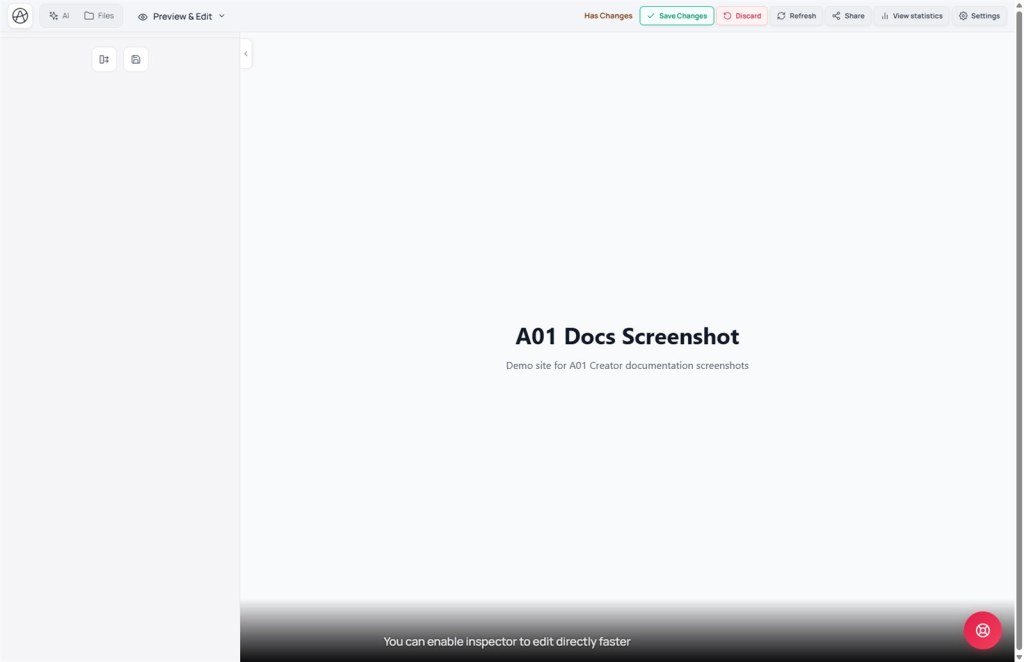
| Save changes | Write the draft to live | Green button on the top toolbar |
| Discard | Delete all unsaved changes | Next to Save changes |
| Has changes | Badge that an unsaved draft exists | Beside Save changes |
| Unpublished draft | Link to view Changes without Save | Share modal |
| preview_session | URL param tying the draft link to the current Creator virtual disk | Unpublished draft URL |
| Feedback / review_mode | Guest feedback mode (?review_mode=1) on Preview Session | Share page toolbar |
| Internal Notes | Team markers in Creator - Pending/Done + batch Ask AI | Comments · Comments manager |
| Review comment | Guest feedback via Feedback link - not auto-batched to AI | Comments manager (separate label) |
| Live URL | Public address of the app now | Share modal |
3. Save changes & Discard - step by step
- After you edit something, the Has changes label appears next to the two buttons on the top toolbar.
- Check again in View & edit on Changes so you’re sure it’s right.
- Agree → click Save changes. The draft on the virtual disk is written to live. Current and Changes match.
- Disagree with everything or want a full reset → click Discard. Confirm (Discard all unsaved changes?) - this is not undoable; all AI/Inspector edits since the last Save are gone.
4. Share an unpublished draft (Preview Session)
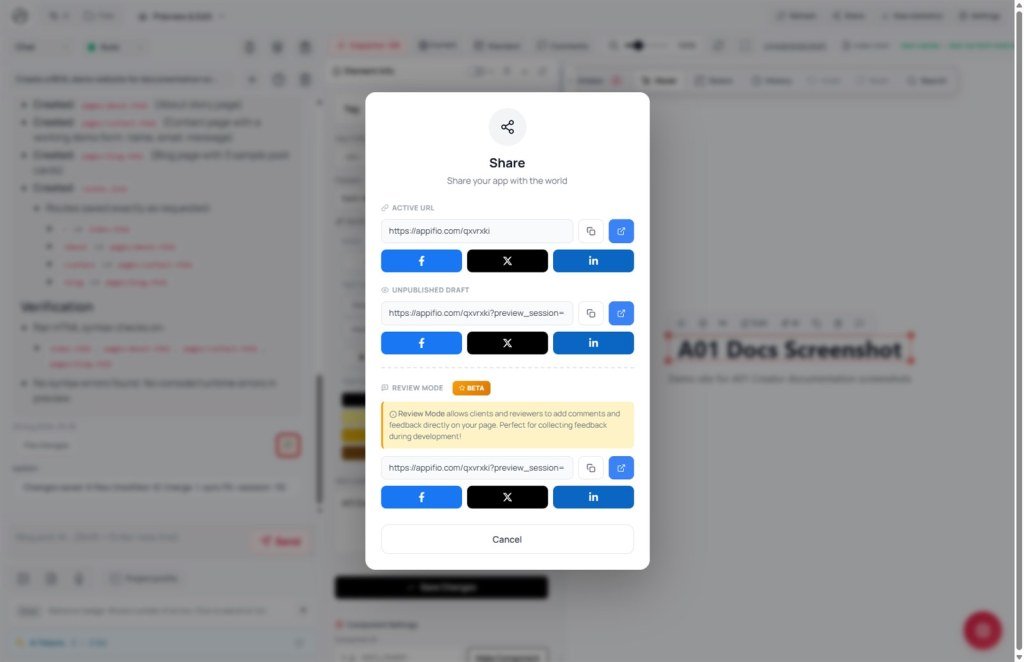
Click Share on the toolbar. The modal has two main parts:
Live URL
The real public link - matches Current (already Saved). Send this to end customers.
Unpublished draft
URL with preview_session=… - serves the virtual-disk Changes of the current session, even before Save. Use for approval before publish.
On the share page: switch Preview (view only) ↔ Feedback (review_mode=1). In Feedback, guests use Comment / Comments on elements - no Creator login. Wrong/expired session → Preview session not found: copy a fresh link from the same Creator session. Full two-type detail → lesson K10.
5. Manage comments - two types
Open Comments manager from View & edit. One panel, two sources:
- Notes (internal): you/team mark on preview - Pending / Done. Only Pending items feed Ask AI to edit ({count} pending).
- Review comments: guests leave via Preview Session + Feedback - separate markers, Show/Hide review comments. Not auto-batched: read → create Pending notes or chat AI → Diff → Save.
| Control | What it does |
|---|---|
| Show all comments / Hide all | Toggle internal note markers on preview |
| Show review comments / Hide | Guest feedback only (review_mode) |
| Ask AI to edit ({count} pending) | Internal Pending notes only - not Review comments |
| Done / Pending | Toggle internal note status (affects batch count) |
6. Compared with other tools
- Webflow: Staging vs Published ≈ Current/Changes, but no free review_mode link for guests commenting on preview.
- Framer: Preview link before publish ≈ Unpublished draft; comments follow layers more than live DOM elements.
- Figma / v0: Strong canvas comments; Creator pins notes on the real running HTML site and can send them straight to AI.
7. Can / can’t
You can
- View draft via Preview Session without login
- Two types: internal Notes + guest Review comments
- Batch Pending internal notes to AI once
You can’t
- Formal approve/reject like a Git PR
- Restrict who can open the draft link (anyone with the link can view)
- Schedule publish automatically
8. Security
The Unpublished draft link has no password - treat it as a temporary public share. Don’t post it on social or large groups if the draft has sensitive content (unapproved prices, internal info). To revoke access, the surest path is Save changes or Discard so the old draft content is gone, then create a new link if needed.
9. Common issues
| Situation | Fix |
|---|---|
| Saved but visitors still see the old page | Ask them to Refresh; check browser/CDN cache before assuming a bug |
| Discarded by mistake | Check Versions or the latest Checkpoint |
| Reviewer can’t Comment | Need Feedback / review_mode=1; fresh Unpublished draft from Share; same session (not Preview session not found) |
| See guest comments but Ask AI is disabled / count = 0 | Review comments aren’t batched - create Pending notes or chat AI |
| Old comments still show after fixes | Mark Done / Delete internal notes; optionally Delete handled Review comments |
10. Tips
- Before Save on a big structural change, Create new (Clone) first for a rollback path.
- Use the Unpublished draft link when a client must “sign off” before go-live - avoids “I never saw that version.”
- Batch many Pending internal notes with Ask AI to edit; for guest feedback: read Review comments then create Pending notes (see K10).
11. Self-check
- Do you know when visitors see real changes (Saved) vs only you (Changes)?
- Can you get Unpublished draft (
preview_session) and enable Feedback for the client? - Do you tell Notes (Pending → batch AI) from Review comments (view → create notes/chat)?
- Do you check Checkpoint/Versions before Discard if you’re unsure?
Next lesson
E04 - Export: Screenshot, PDF, ZIP, APK (BETA)
When the draft looks good, export a screenshot, PDF, project package, or try the limited Android APK BETA.
Internal navigation (same language)
Appifio Creator · User guide · E03
