
Appifio Creator · Lesson D04 · Intermediate
edit HTML/CSS/JS directly - and when not to
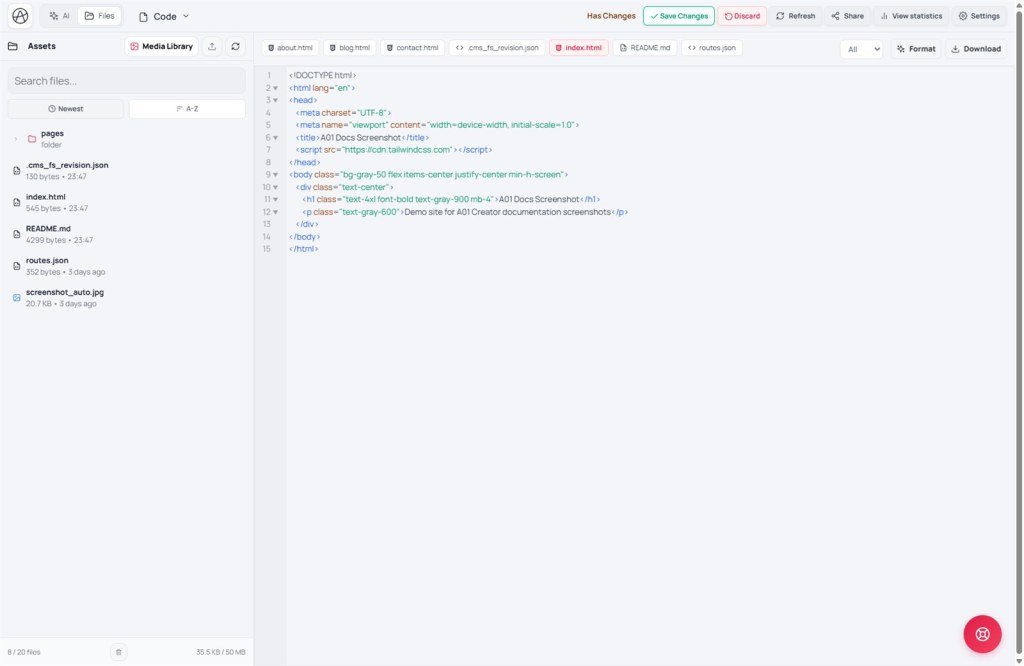
The Code tab shows and edits the raw source of the selected file. It’s powerful and also the riskiest surface in Creator - this lesson helps you know when to use it, and when to hand off to Inspector or AI.
Learning goals: Open Code on the right file, use Format and Download, and recognize when you should / shouldn’t edit code by hand.
Reading time: about 12-15 minutes
Prerequisites: Comfortable with Inspector (C03-C04); you don’t need to be a developer to read this, but be careful when practicing.
Previous / next: ← D03 (Libraries & fonts) · → E01 (Versions - Clean vs Clone)
Main UI labels: Code · Format · Download · Save changes · Discard · Has changes · Changed
1. Workflow map
2. Glossary
| Term | Meaning | Where in the UI |
|---|---|---|
| Code | Tab showing raw source of the selected file (also called Asset) | Top Creator tab |
| Format | Re-indent / tidy whitespace so code is readable | Button on the Code toolbar |
| Download | Export the current file to your machine | Button on the Code toolbar |
| Has changes / Changed | Badge for unsaved edits - project toolbar and green dots on files | Top toolbar / file tree |
3. How to use the Code tab
- Select the file in Files, then switch to Code.
- Edit in the source editor - syntax highlighting for HTML/CSS/JS.
- Use Format when code is messy (often after pasting) to re-indent automatically.
- When done, the Has changes badge appears; the file shows a green dot. Click Save changes to publish to live, or Discard to drop edits.
- Need a copy outside Creator (backup, share)? Click Download.
4. When to edit code - and when not to
Edit code when
- You need an attribute Inspector doesn’t expose in the UI
- A one-line fix (number, class) you fully understand
- You’re a developer checking/tuning JS logic
- Pasting a sample you understand into the right place
Don’t edit code when
- You’re unsure how an HTML tag affects the rest of the page
- You only need text/image/color - Inspector is faster and safer
- You need repeating layouts (features, pricing, steps) - use Smart Layout/AI instead of typing every tag
- You’re uncertain - ask the AI Agent to do it and explain
Golden rule: “Use Inspector: instead of editing code, use Inspector when you can. Faster and fewer mistakes.” - official tip from Creator’s help system.
5. Compared with popular tools
| Tool | Similar | Different |
|---|---|---|
| Cursor / VS Code | Syntax-highlighted editing | Creator’s Code tab is lighter - no extensions/terminal; for quick edits, not a full IDE |
| Webflow (Custom Code) | Custom code when the UI isn’t enough | Creator edits the whole file, not only a snippet slot |
| Bubble | Visual-first, limited hand-coding | Creator still lets you view/edit real HTML/CSS/JS - not fully locked |
6. Technical limits
You can
- View/edit full real source with no feature lock
- Reformat messy code in one click
- Download files for off-system backup
You can’t
- Get IDE-level autocomplete/suggestions
- Rely on full realtime syntax checking - bad edits can break the page
- See preview update automatically until the file is saved
7. Common issues
| Issue | Fix |
|---|---|
| Page breaks after a code edit | Click Discard immediately if not saved; if already saved, use Checkpoint (E02) or an older Version (E01) |
| Not sure which line broke things | Ask the AI Agent (Debug mode) to read the file and find the error |
| Messy code after paste | Use Format to re-indent |
8. Tips
- Before a large code edit, create a Checkpoint or Clone version - a place to return if it goes wrong.
- Read the related block carefully; don’t blind find-and-replace.
- If unsure, ask AI to explain what that code does before you touch it.
9. Self-check
- Can you open Code on the file you need?
- Have you tried Format and Download?
- Can you name at least two cases where Inspector beats Code?
Next lesson
E01 - Versions: Clean vs Clone, switch safely
Create a new working version two ways - completely clean or cloned from current - so you can experiment without losing data.
Internal navigation (same language)
Appifio Creator · User guide · D04
