
- 1. Three subtabs - don’t confuse with Media Library
- 2. Workflow map
- 3. Stock Images - Pixabay, Pexels, Unsplash
- 4. Fonts - default, Google, premium & Vietnamese
- 5. Libraries (CDN) - Bootstrap / icons / charts
- 6. How libraries/fonts load automatically on page open
- 7. Toggle + Save vs hand-pasted CDN
- 8. Technical limits
- 9. Common issues
- 10. Tips
- 11. Self-check
Appifio Creator · Lesson D03 · Intermediate
Stock Images · Fonts · CDN Libraries
One tab, three subtabs: find Pixabay/Pexels/Unsplash photos, enable fonts (including Vietnamese text), and toggle Bootstrap/icons/charts - the system injects them when the page loads, so AI doesn’t need to paste tags into HTML.
Learning goals: Tell the three subtabs apart; use Stock Images with download→upload; enable Fonts and CDN Libraries + Save; understand why you don’t hand-declare tags in page code.
Reading time: about 18-22 minutes
Prerequisites: Comfortable with preview (C01); ideally know the Files tab (D01).
Previous / next: ← D02 (Routes) · → D04 (Code tab)
Main UI labels: Libraries · Images · Fonts · Stock Images · In use · Save · Search libraries… · Default Fonts · Google Fonts · Premium Fonts
1. Three subtabs - don’t confuse with Media Library
| Subtab (UI button) | Use for | Not for |
|---|---|---|
| Images → title Stock Images | Find free photos from Pixabay, Pexels, Unsplash | Uploading project images (Media Library - D01) |
| Fonts | Enable Default / Google / Premium fonts | Pasting a Google Font <link> into every HTML file |
| Libraries | Enable CDN JS/CSS (Bootstrap, Font Awesome, Chart.js…) | Duplicating <script>/<link> tags in index |
Correction: Opening the Libraries tab usually lands on Images (Stock Images) first - not the CDN list. For Bootstrap/Chart → switch to Libraries.
Also don’t confuse: the Library / Media control inside Files = Media Library (uploaded project files) - lesson D01.
2. Workflow map
3. Stock Images - Pixabay, Pexels, Unsplash
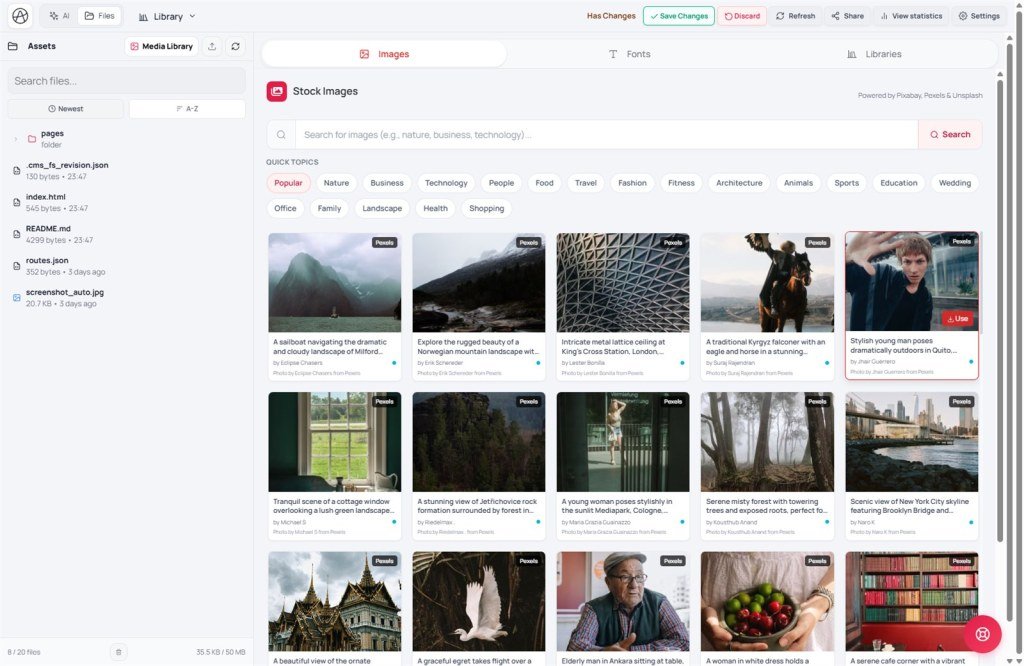
The Images subtab shows Stock Images / Powered by Pixabay, Pexels & Unsplash. It’s an external search/download source - not your project file vault.
- Open Libraries → Images.
- Use search (e.g. nature, business…) or quick topics (Popular, Nature, Business…).
- Open an image → Download to your machine (UI warns against relying on hotlinks / stock API limits).
- Go to Files / Media Library → upload → use the project URL/file (Inspector or AI).
- Add attribution as required (Pixabay / Pexels / Unsplash - Unsplash typically needs photographer + Unsplash links).
Don’t: ask AI to embed temporary stock preview URLs in production; always download → upload into the project first.
4. Fonts - default, Google, premium & Vietnamese
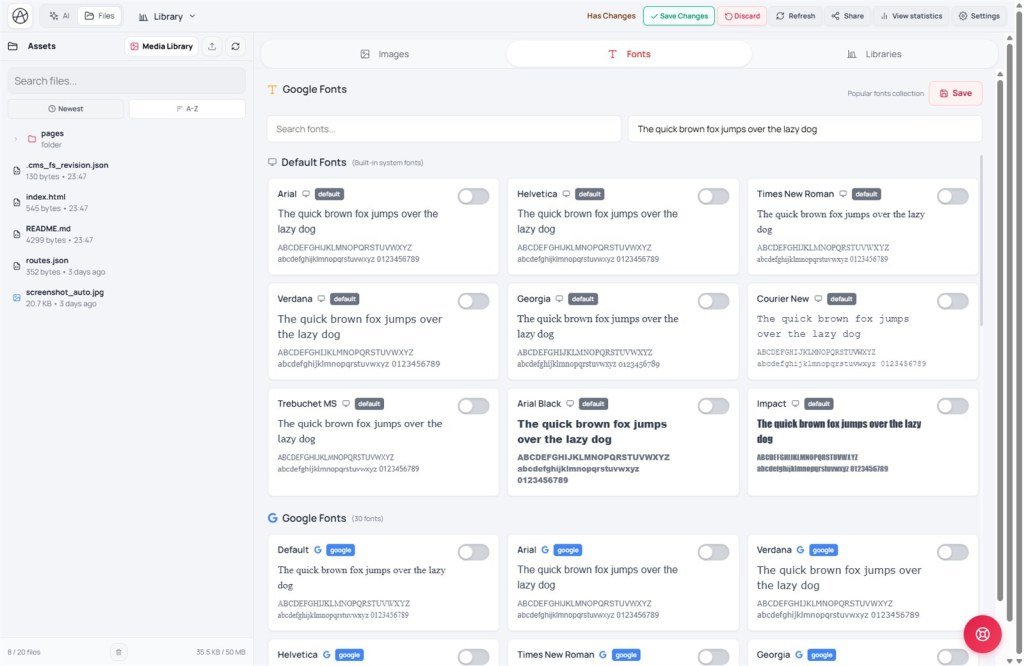
The Fonts subtab groups:
| Group | Meaning |
|---|---|
| Default Fonts | System fonts (Arial, Verdana…) - no external CDN fetch |
| Google Fonts | Popular webfonts (Roboto, Open Sans, Inter, Montserrat…) - toggle on |
| Premium Fonts | Platform-integrated / uploaded fonts (when available on the account) |
- Enable fonts you need → edit the sample text field (UI default often includes Vietnamese diacritics).
- Preview: if ă/â/ê/ô/ơ/ư render correctly → good for Vietnamese content. Use a longer sample if needed.
- Click Save on the Fonts panel (required). Toggle alone is not enough.
- If you’re on a draft: Creator Save changes → Reload preview.
- In CSS/Inspector use the enabled font name; tell AI: “use the font already enabled under Fonts - don’t add Google Font links by hand.”
Vietnamese: Many popular Google Fonts cover Vietnamese glyphs once enabled here. Always verify with accented sample text before delivery. Don’t assume every listed font looks good with Vietnamese - preview first.
5. Libraries (CDN) - Bootstrap / icons / charts
- Libraries subtab → Search libraries… / filter categories.
- Toggle what you need (Bootstrap, Font Awesome, Chart.js…) → In use badge.
- Click Save on the Libraries panel → success toast.
- On Changes: Creator Save changes → Reload preview.
- Ask AI to use the enabled library - e.g. “Build a form with Bootstrap already enabled.”
Correction: “Enable a library” means the Libraries subtab, not Images. Font Awesome (icon CDN) is different from the Fonts subtab (typefaces).
6. How libraries/fonts load automatically on page open
After you Save Libraries / Fonts config (and publish with Save changes when needed), each time a visitor (or preview) loads the page:
- The platform reads the project’s enabled libraries / fonts.
- It injects CDN CSS/JS in dependency order (e.g. dependents wait for jQuery).
- It loads enabled fonts (Google Fonts or integrated fonts).
- It exposes a browser-side API so code can wait until a library is ready - the Libraries panel shows developer examples (e.g. wait for Bootstrap before calling it).
Why this helps: toggle once → applies when any project HTML page loads. You/AI should not hand-declare <script> / <link> for catalog libs/fonts.
Avoid duplicates: if AI still pastes another Bootstrap CDN while one is enabled → version clashes / double load. Tell AI to use only enabled libs.
7. Toggle + Save vs hand-pasted CDN
| Criteria | Toggle in Libraries | Hand-paste CDN in Code |
|---|---|---|
| How | Toggle + Save | Type <link>/<script> into HTML |
| Need to code? | No | Need correct CDN URL and placement |
| Multi-page sync | Automatic on every project page load | Must paste into each HTML file |
| Duplicate/error risk | Low - platform controls loading | Easy to load twice / wrong version |
8. Technical limits
You can
- Search & download stock photos from three sources
- Enable multiple CDNs + fonts; apply on page load
- Preview fonts with Vietnamese sample text
You can’t
- Have libs/fonts work without Save (+ Save changes when needed)
- Use off-catalog libs without hand Code (D04) if required
- Enable every CDN without slowing preview; blocked networks break CDN (X01/X12)
9. Common issues
| Issue | Fix |
|---|---|
| Open Libraries but don’t see Bootstrap | You’re on Images - switch to Libraries |
Lib on but AI code says $ is not defined | Save Libraries → Save changes → Reload; see X12 |
| Vietnamese glyphs missing / boxes | Try another font; check accented sample; Save Fonts + Reload |
| Stock image fails on live | Download → upload into the project; don’t rely on temp URLs |
| Media Library vs Stock Images | Media = uploaded files (D01); Stock = Pixabay/Pexels/Unsplash under Libraries → Images |
10. Tips
- Only enable CDNs/fonts you need - each adds download weight.
- Enable & Save first, then prompt AI to use them.
- Images: always download → upload → attribute.
- Unsure which lib? Ask AI which Libraries item to enable for charts.
11. Self-check
- Can you tell Images / Fonts / Libraries apart from Media Library (D01)?
- Have you tried stock search and the download→upload path?
- Have you enabled a Google Font, checked accents, and Saved?
- Have you enabled a CDN (e.g. Bootstrap), Saved, and explained why you don’t paste tags by hand?
Next lesson
D04 - Code tab: edit HTML/CSS/JS when needed
When to edit code yourself vs Inspector/AI - avoid breaking the page.
Internal navigation (same language)
Appifio Creator · User guide · D03
