
Appifio Creator · Lesson H04 · Advanced
& DOM Search
Three tools so you control changes instead of “AI finished - hope it works”: Diff compare (✓/✗), restore points in Edit history, and find elements with DOM Search (Ctrl+Shift+F).
Learning goals: Know when to open Diff, when to use History vs Checkpoint vs Versions; find elements when Inspector is hard to click.
Prerequisites: B01 (AI Chat), C03 (Inspector), E01-E02 (Versions & Checkpoint).
UI labels: Compare changes · Add (+) · Remove (−) · Apply changes · Close · Edit history · Restore this point · DOM Search · Utilities
Previous → next: H03 → H04 → (T / K / X deep technical series)
1. Which tool?
2. Glossary
| Term / label | Meaning |
|---|---|
| Compare changes: | Diff panel title after AI writes files |
| Add (+) / Remove (−) | Lines added / removed in the diff |
| Previous / Next / Latest change | Navigate hunks in Diff |
| Apply changes | Commit the changes you’re reviewing in Diff |
| Edit history | Undo points from editor actions (not a full AI session) |
| Current (in History) | The point you’re on - not the preview “Current” button |
| DOM Search | Modal to find Class, ID, Text, Tag, Attribute, Selector |
| Utilities | Preview toolbar for sub-components (Loading, Back to top, Analytics…) |
3. Steps - Diff after AI edits
- Send a request in "Ask AI… (Shift+Enter for new line)" → "Send".
- When AI reports file edits, open the file-changes bar or "Compare changes:" panel.
- Read Add (+) and Remove (−). Use Previous change / Next change / Latest change to jump hunks.
- Per change: ✓ to accept or ✗ to reject (matches the UI hint).
- When done, click "Apply changes" or "Close". Then check the "Changes" preview tab.
- Only when happy click toolbar "Save changes" (not the Routes “Save”).
4. Steps - Edit history
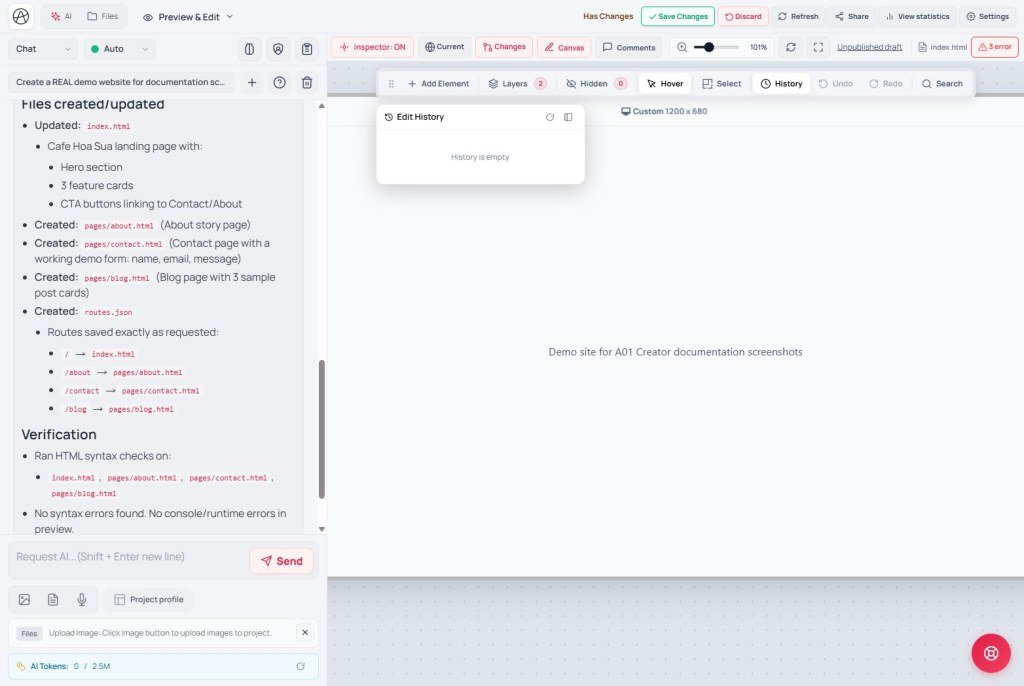
- Open "Edit history" (from the editor toolbar/history - common UI label History).
- If empty you’ll see "History is still empty" - no recorded points yet.
- Pick a point → "Restore this point". The active point shows "Current".
- To remove a milestone: "Delete" → confirm "Are you sure you want to permanently delete this history point?".
Four “go back” layers:
1) Undo / Redo (toolbar) - last editor steps.
2) Edit history (History button) - pick a recorded point → Restore this point / Delete.
3) Checkpoint - flag on AI messages (E02).
4) Versions - Clean/Clone (E01).
History ≠ Checkpoint ≠ Versions; History also doesn’t replace Diff after AI writes files.
5. Steps - DOM Search
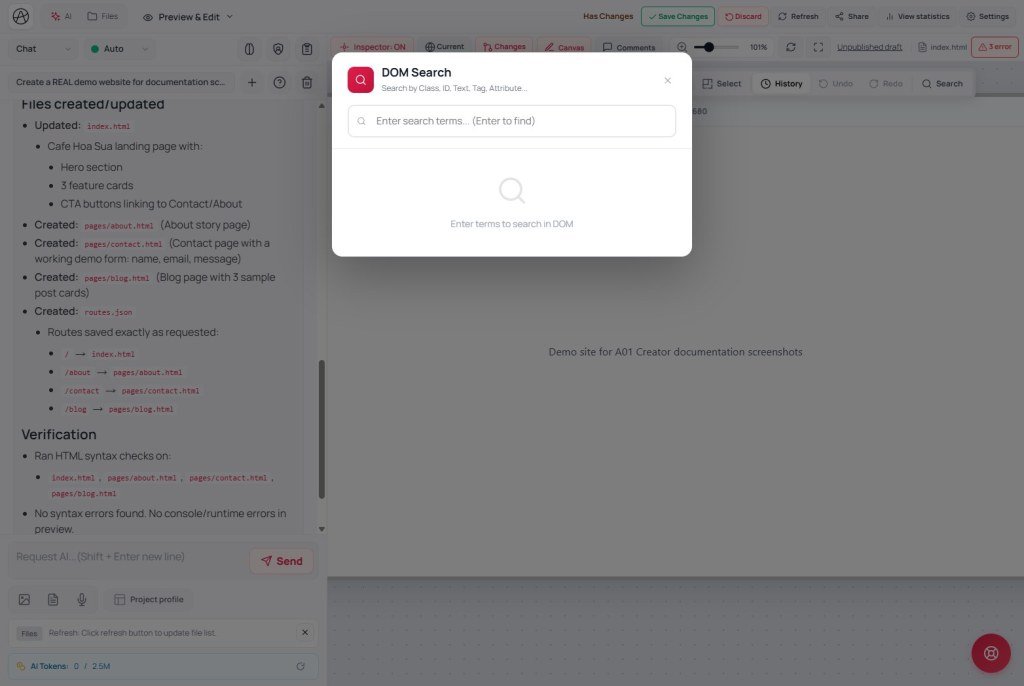
- On View space, turn on "Inspector" first. If off, tooltip: "Turn on Element Inspector to use DOM Search".
- Open DOM Search (Ctrl+Shift+F) - title "DOM Search"; find by Class, ID, Text, Tag, Attribute…
- Type into "Enter search keyword… (Enter to search)" → Enter.
- See "Found N results"; browse with Previous / Next. Types: Text · Class · ID · Tag · Attribute · Selector.
- Click a result to select the element → edit in Inspector / ask AI.
- Close with "Close". Search history lives under "Search history" (separate from Edit history).
5b. Utilities (sub-components)
Utilities on the preview toolbar (tooltip: Configure Utilities (Loading, Back to top, etc.)) opens Configure extra utilities. When you click Apply to source, the system confirms then writes HTML into the pages you selected.
| Group | Features |
|---|---|
| UI | Page load effect (Spinner / Progress / Fade-in) · Back to top · floating Share · Cursor & scrollbar |
| Tracking | Code in / end of (GA, Pixel…) |
| Third-party chat | Tawk.to / Intercom / Facebook Chat… |
| Pages to apply | Pick which HTML gets the code (e.g. Login may skip Share) |
After applying, still preview and Save changes to publish. Don’t ask AI to inject scripts that duplicate Utilities already on.
6. Compared with other tools
- VS Code / Cursor Diff: familiar ✓ hunks - Creator Diff is similar but tied to the virtual disk + preview.
- Chrome DevTools Ctrl+F / Inspect: DOM Search is closer to DevTools, wired into Appifio Inspector.
- Figma Version history: Creator History is narrower (action points), not full Git version control.
- Lovable / v0: often auto-apply AI; Appifio lets you reject hunks via Diff - safer on a live site.
7. Technical limits
You can
- Reject part of AI changes before Save changes
- Undo recent Inspector actions
- Find hard-to-click elements (stacked/small)
Not a replacement for
- Full Git / PR review
- Long-range chat+project restore (use Checkpoint/Versions)
- DOM Search with Inspector off
- Blocked custom-domain preview (reset domain - X series)
8. Security
- When reviewing Diff, watch for secrets/API keys slipped into HTML - reject (✗) immediately.
- Don’t share Diff screenshots that contain tokens/sessions.
9. Common issues
| Situation | Fix |
|---|---|
| Diff stuck on “Loading content…” | Reload preview; check connection; reopen file changes |
| Can’t open DOM Search | Turn on Inspector first - DOM Search only works with Inspector on |
| “No results for …” | Change search type (Class/ID/Text); confirm you’re on Changes vs Current |
| History empty after a big AI edit | Use Checkpoint / Versions Clone - History doesn’t cover every AI write |
| Confused History “Current” with preview | Context: History = undo point; preview = live vs draft |
10. Tips
- Golden rule: AI edits → Diff ✓/✗ → preview Changes → then Save changes.
- Before a big prompt: Checkpoint + (optional) Clone version.
- Search stable class/id (not marketing copy that changes) so searches stay useful.
- Add Utilities (Loading, Back to top, Tracking) after the DOM is clean - avoid duplicate AI scripts.
11. Checklist - end of series H
- Have you rejected at least one hunk with ✗?
- Can you tell History / Checkpoint / Versions apart?
- Can you open DOM Search after enabling Inspector?
Next
Series T / K / X - deep glossary & technical topics
Suggested list in the master report: virtual disk, appifio_client, shards, CMS manifest, rate limit, custom domain…
Internal navigation (same language)
Appifio Creator · User guide · H04
