
- 1. What is Appifio Creator?
- Five core pillars
- 2. Virtual disk and secure draft workflow
- Virtual disk - Where all changes begin
- The "Save Changes" principle
- 3. Technical rules and system constraints
- Supported technologies
- Routing rules
- 4. Preview space: Standard vs Canvas
- 5. AI and Inspector synergy
- Smart connection
- 6. Management and operation (Storage & CMS)
- 7. Five-step workflow for a complete product
- 8. Export: .afi vs ZIP
- 9. Main tabs map inside Creator
- 10. Safety checklist & common issues
Appifio Creator
Guidance No. 28 | Latest Update
Discover how Appifio Creator combines AI and visual tools to help you build professional Websites, Biolinks, and Webapps without coding.
1. What is Appifio Creator?
Appifio Creator is a breakthrough creative studio that allows users, even those without programming knowledge, to build professional digital products such as Websites, Biolinks, Landing pages, or Webapps.
Unlike traditional drag-and-drop tools, Creator integrates Artificial Intelligence (AI) into every stage of production, from brainstorming and source code writing (HTML/CSS/JS) to database setup and content management.
Five core pillars
- AI Agent: A smart assistant that writes code and executes requests.
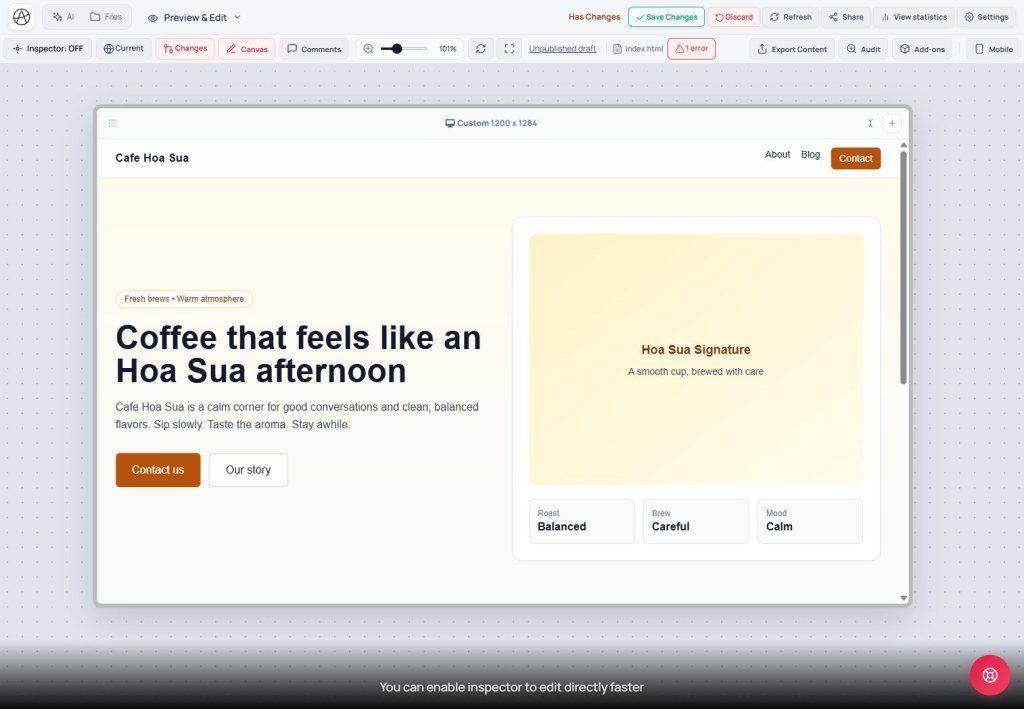
- Preview space: Versatile preview with Standard and Canvas (multi-device) modes.
- Inspector: Visual editing tool (touch to edit) without touching the source code.
- Aura Storage: Built-in data and file storage system.
- Aura CMS: Content management page operating at
/cms.
2. Virtual disk and secure draft workflow
This is the most important concept for experimenting with confidence without fear of breaking your live product on Appifio.
Virtual disk - Where all changes begin
When you command the AI or use the Inspector to edit, the system writes those changes to a temporary area called the Virtual Disk.
- Current: The version active on the Internet; your customers see this version.
- Changes: The draft version on the virtual disk; only you see this in Creator.
The "Save Changes" principle
Every change in Creator will not take effect for customers until you press the "Save Changes" button. If unsatisfied, simply press "Discard" to return to the initial safe state.
3. Technical rules and system constraints
To ensure compatibility and performance, Appifio Creator applies strict technical rules that both users and the AI must follow:
Supported technologies
- Web interface: Only HTML, CSS, and Vanilla JavaScript (Vanilla JS) are supported. The system does not support TypeScript or SPA Frameworks such as React, Vue, or Node.js in this environment.
- Android applications: Beyond web development, the system supports mobile app development via Java, Kotlin, XML, and Gradle. The AI is capable of generating Java code to build complete Android applications.
- PHP policy: Although the system runs on a PHP platform, the AI is configured to not interfere with, generate, or support any PHP-related issues.
Routing rules
Files are managed with the .html extension, but when displayed in the browser, URLs will not include this extension. For example, the home page is index instead of index.html. This keeps your URLs looking professional and clean.
4. Preview space: Standard vs Canvas

The "Preview & Edit" tab is where you observe your work. The system provides two views:
| Mode | How it works | When to use |
|---|---|---|
| Standard | Displays a single viewport with simple zoom capabilities. | Used for focusing on detailed edits or checking the primary interface. |
| Canvas | Displays multiple viewports side-by-side (Desktop, Tablet, Mobile). | Used for designing responsive interfaces, ensuring the web looks great on all devices. |
Ctrl + Mouse Wheel to zoom in Canvas mode, or add custom breakpoints from 320px to 1920px.5. AI and Inspector synergy
Appifio Creator provides two "hands" for building your project:
- AI Agent (Left side): You "speak" your request (e.g., "Add a 3-column blue pricing table"). AI automatically writes the code to the virtual disk. AI has multiple modes like Chat, Coder, Debug, UI, and Architecture.
- Inspector (Visual): When you want to quickly edit text, an image, or a button color, you turn on the Inspector, click directly on the element on the preview screen, and edit immediately.
Smart connection
Every manual action you take via the Inspector is recognized by the AI. Conversely, everything the AI creates can be easily fine-tuned using the Inspector.
6. Management and operation (Storage & CMS)
After your website has a beautiful interface, you need to manage data and content long-term:
- Aura Storage: Automatically handles tasks like saving contact forms, member registrations, or order data without needing server configuration.
- Aura CMS: A dedicated dashboard (at
/cms) for publishing posts, managing products, or updating daily news without reopening the complex Creator editor. - Aura MCP: For advanced users who want to connect Creator with external programming tools like Cursor or VS Code.
7. Five-step workflow for a complete product
- Open Creator: Select an existing Template or provide an initial description to the AI.
- Work on draft: Use AI and Inspector to build the interface in the "Changes" tab.
- Multi-device check: Enable Canvas mode to ensure the web looks great on phones.
- Security & Checkpoint: Create a "Checkpoint" in the AI chat to save important milestones before trying something new.
- Publish: Press "Save Changes" to take the website live. Then go to Aura CMS to publish actual content.
8. Export: .afi vs ZIP
When downloading a project, open Export → Export content and pick the right format:
- Appifio project (.afi): full package for backup / handoff / reopen in Appifio - may include Creator session meta (chat history, context summary…). Share only with trusted people.
- ZIP (.zip): the same site files (HTML/CSS/JS/images…) but without Creator session meta - best for sharing clean source externally.
Short links, plans, Pixels… belong to Appifio platform help - they do not replace Creator workflows.
9. Main tabs map inside Creator
After opening Creator, these are the tabs you will meet most often:
- AI chat: create/edit by command; modes Chat / Coder / Debug / UI / Architecture; Checkpoint on messages.
- View & edit: Current / Changes · Standard / Canvas · Inspector · Comments · Audit · Export.
- Files: HTML/CSS/JS/image tree; Media Library; Photo Editor.
- Code · Routes · Libraries: detailed source edits; pretty URLs mapped to HTML files; CDN/fonts.
- Prompt & Skills: in-project AI behavior profiles (different from the public AI Prompt Studio library on the Appifio website).
- Versions · Templates: Clone/Clean for safe experiments; starter templates - applying a template can wipe project files and temp data.
- Backend · MCP: Aura Storage (Easy/Advanced, secrets, admin); external IDE bridge (enable MCP → session → token → download package).
- Top toolbar: Save changes / Discard - always use after editing the draft.
10. Safety checklist & common issues
- Chat finished but the live site did not change: by design - AI writes to Changes. Review the preview, then click Save changes.
- Inspector not responding: work on the correct draft tab (usually Changes); reload the preview and try again.
- Aura Storage Easy vs Advanced: Easy = simpler flows; Advanced = fuller APIs/data for webapps (forms, orders, CMS). Pick by product complexity.
- Aura CMS: after the page shell exists, manage content at a path like
/your-link/cmswithout reopening Creator daily. - Project profile: button on the chat panel - brand/app name/logo for AI and Export. Update before exporting .afi / ZIP / APK.
© 2026 Appifio Creator - Guidance documentation for non-professional users
