
Table of contents
Traditional Mode
Manual Biolink creation guide
Design and control every detail of your personal profile page by hand.
1. Why choose manual mode?
While AI offers rapid creation, Manual Mode remains the top choice for users who want:
- Absolute control: Manually arrange block orders, choose specific fonts, and select exact color palettes.
- Template usage: Select from a repository of professional, designer-crafted layout templates.
- High personalization: Write every message from scratch without relying on AI-generated suggestions.
2. The 3-step initialization process
1
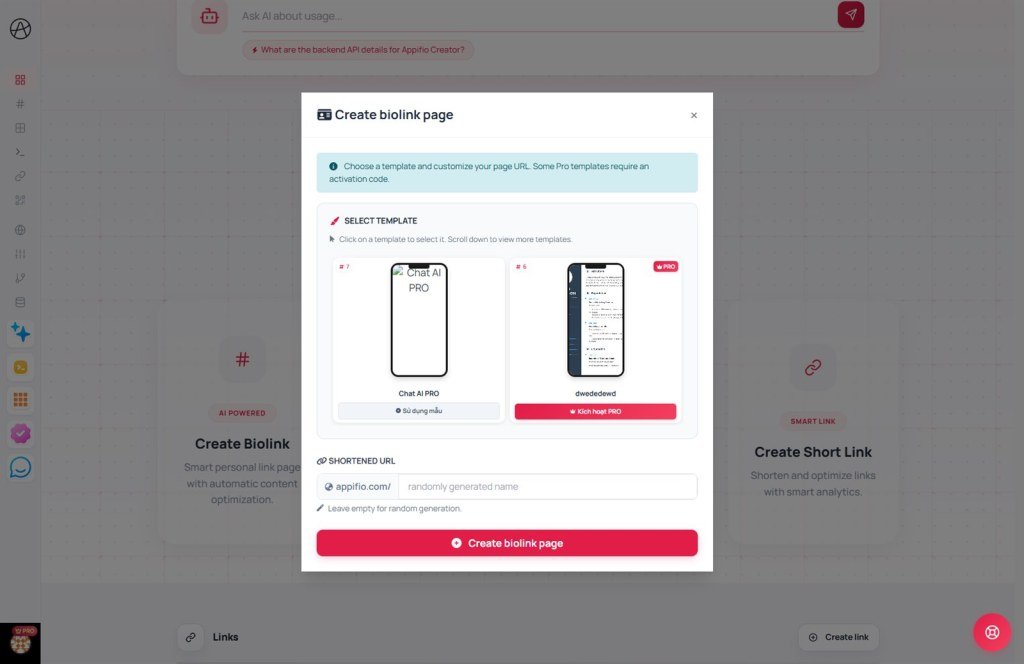
Select a layout template
Browse the list of pre-designed templates. You can:
- Preview: Click the iPhone mockup of a template to see a live demo of the layout.
- Categories: Templates are divided into FREE and Premium (PRO) versions.
2
Set your URL slug
Enter the custom path for your Biolink (e.g., appifio.com/your-name).
Pro tip: Choose a short, memorable, and brand-focused name to make it easy to share on Instagram or TikTok.
3
PRO template verification (If applicable)
If you select a template with a PRO badge, the system may require an Activation Passkey if the template is part of a premium package or requires specific permissions.
3. Navigating the detailed editor
After clicking "Create Page," you'll be redirected to the advanced Biolink manager. Here, you can:
- Add blocks: Insert buttons, images, videos, music, social icons, and more.
- Customize design: Modify backgrounds (colors, gradients, images), fonts, and button styles.
- Configure SEO: Set custom titles and descriptions to make your page discoverable on Google.
4. Important considerations
Unique paths: Every URL slug is unique. If your desired name is taken, try adding a few characters or numbers.
Switching flexibility: You can always return to the Dashboard to use our AI Wizards if manual setup feels too time-consuming.
© 2026 Appifio Creator - Empowering your creative journey
