
- 1. What is a Short link?
- 2. How to create a Short link
- Open the create dialog
- Enter the Long URL (destination)
- Customize the Shortened URL
- Click “Shorten URL”
- 3. Moderation and security
- 3.1. Alias checks (Shortened URL)
- 3.2. Destination URL - blacklist
- 3.3. Risky destination policy (three groups)
- Two outcomes when creating a link
- Important tips for creators
- 4. Visitor experience
- 4.1. “Please review before continuing”
- 4.2. Other protection layers (if enabled)
- 5. After creation - manage and optimize
- 6. Common issues
Short link
Turn a long URL into a short, shareable path - plus how URL moderation, security warnings, and the visitor experience work.
1. What is a Short link?
A Short link turns a long URL into a short path on the Appifio domain or your custom domain. When someone opens it, they are redirected to the destination you configured.
Use a Short link when you need to:
- Share a compact link on social media, SMS, or print.
- Track clicks and traffic sources (statistics).
- Change the destination later without changing the published short URL.
2. How to create a Short link
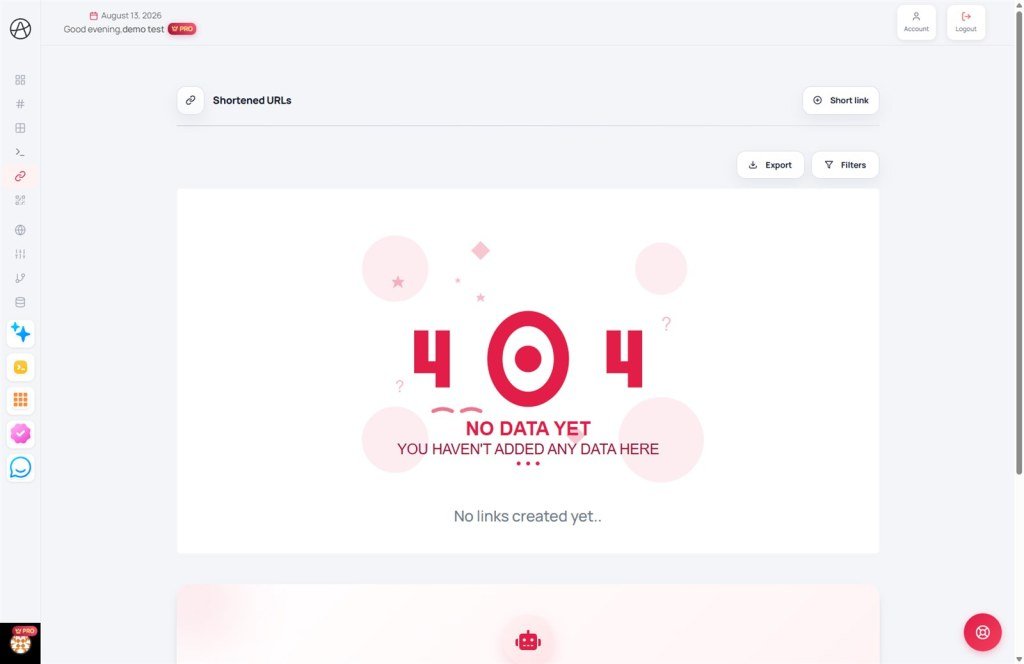
Create a Short link from the Dashboard or Links → Short link.
Open the create dialog
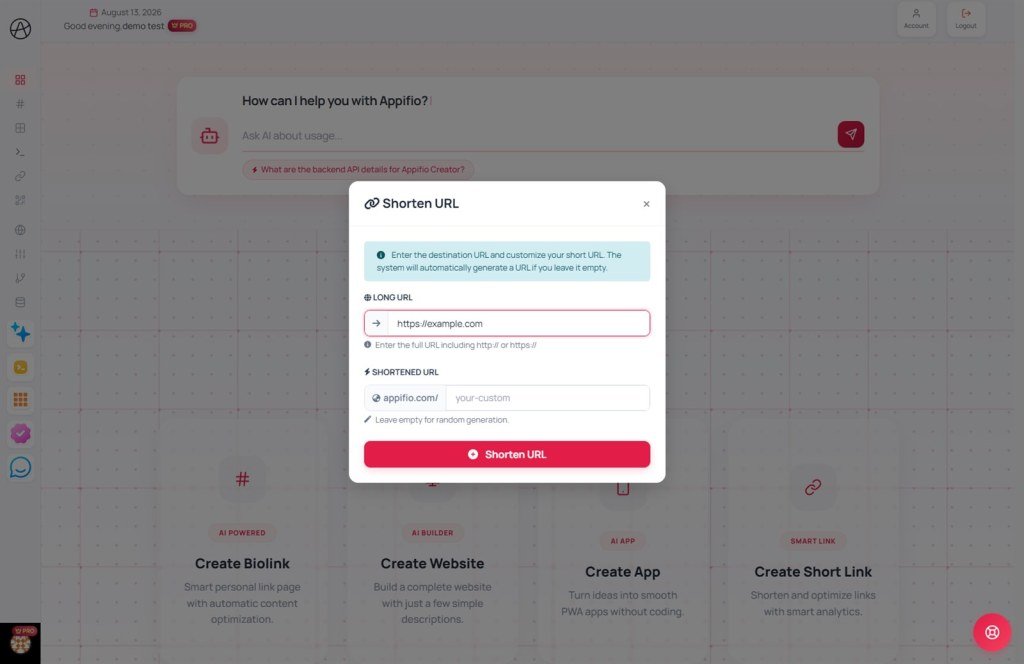
Click Create link on the Dashboard or Links page, then choose Shorten URL / Short link. The create dialog opens.
Enter the Long URL (destination)
Paste or type the page you want visitors to open. It must be a full URL starting with http:// or https://.
Example: https://your-website.com/posts/promo
Customize the Shortened URL
The Shortened URL has two parts:
- Domain: Defaults to the Appifio domain. If you connected a custom domain, you can select it.
- Alias (path): The name after the domain, e.g.
appifio.com/promo.
Click “Shorten URL”
The system checks the destination, alias, and account permissions. If valid, the Short link is created and you are taken to the detail page to configure pixels, projects, statistics, and more.
3. Moderation and security
Appifio runs multiple checks when you create or update a Short link, to protect people who click it and the platform’s reputation. Below is how it works - specific domain lists are not published because they are updated continuously under the safety policy.
3.1. Alias checks (Shortened URL)
Before saving, the system checks your alias:
- Reserved system words: Names that conflict with Appifio functional pages (login, admin, API…) are blocked. See the Link naming rules guide.
- Blacklisted keywords: Aliases with sensitive, fraudulent, or brand-impersonation terms are rejected.
- Already taken: Each path on the same domain must be unique.
3.2. Destination URL - blacklist
The destination (Long URL) is scanned before save:
- Blacklisted domains: Destinations on the blacklist are rejected immediately - you cannot create a Short link to them.
- URL format: Must be valid and use
httporhttps. - Extra safety scan: When enabled, the system may check the URL against a threat-detection service (e.g. phishing, malware). Flagged URLs are not accepted.
3.3. Risky destination policy (three groups)
Beyond the hard blacklist, Appifio classifies some destinations by risk level. Each group can be set to Block, Warn, or Off by platform policy:
Group 1 - Nested shorteners
The destination is another URL shortener (shortener inside shortener).
Why it’s risky: Multi-hop redirect chains hide the real page, are hard to audit, and are often abused for phishing.
Group 2 - High-risk free hosting
The destination sits on free hosting or quick static-page builders that are frequently abused.
Why it’s risky: Content can change at any time without your control.
Group 3 - Platforms under moderation
Destinations on redirect, storage, or sharing services with elevated security risk and frequent abuse reports.
Why it’s risky: Visitors may not know the real content; the Appifio team may review the link if it is reported or suspected of abuse.
Two outcomes when creating a link
- Block: The system refuses to save. Change the destination to a direct, stable page.
- Warn: A yellow notice appears with a confirmation dialog. Read it and choose OK to continue creating, or Cancel to edit the URL.
Check priority: nested shortener → high-risk hosting → moderated platform. Higher-priority matches are handled first.
Important tips for creators
- Avoid nested Short links: Do not use another shortener as the destination. Point to the real website, landing page, or product.
- Avoid opaque redirect services: Intermediate redirects, “click to view” pages, or domains with abuse history are likely to be blocked or warned.
- Prefer stable URLs: Use your brand domain or a page you control (website, store, official signup form).
- Acknowledge warnings responsibly: Continuing after a warning means you trust the destination. The link may still be reviewed if abuse is reported.
4. Visitor experience
When someone opens your Short link, the system may show an extra safety step - independent from the warning you saw while creating the link.
4.1. “Please review before continuing”
If the destination matches a risky group (section 3.3), visitors may see a notice page:
- Title: “Please review before continuing”
- Copy explaining the risk type (nested shortener, external page, or cautionary platform)
- Continue - only a deliberate click navigates to the destination
- Go to homepage if they choose not to continue
Why this design?
Appifio does not instantly HTTP-redirect to a risky destination. Visitors pause, read the notice, and decide - reducing accidental phishing visits. Click statistics are still recorded when the notice page is shown.
4.2. Other protection layers (if enabled)
- Password protection: Visitors must enter a password before continuing.
- Sensitive content warning: A confirmation screen before continuing.
Configure these on the Short link settings page after creation.
5. After creation - manage and optimize
After a successful create, open the link detail page to:
- Change Destination URL: Update the target without changing the shared Short link. New URLs are moderated again under the same rules.
- Statistics: Clicks, countries, devices, referrers.
- Pixels: Attach ad pixels - see the Pixel management guide.
- Project: Group Short links by campaign - see Projects.
- UTM / parameters: Add tracking parameters on the destination when you need deeper measurement in analytics or ads tools.
Practical tips
- Prefer a meaningful alias (e.g.
sale-07,contact) over a random string. - Always test the Short link on a phone before running ads.
- If create fails, read the form message - it usually tells you whether the destination or alias needs fixing.
6. Common issues
“This URL has been blacklisted”
The destination is blacklisted or flagged by the safety scan. Use a direct URL on a domain you own or trust.
Yellow warning + confirmation dialog
The destination is in Warn mode. Read the message, click OK if you are sure, or Cancel to switch to a more stable URL.
“Nested shortener blocked”
Your Appifio Short link points to another shortener. Replace it with the final destination URL.
Visitors see “Please review before continuing”
This is expected protection. They can Continue if they trust the link. To reduce friction, use a direct destination - not another shortener or opaque redirect.
“This custom URL is not available” / blacklisted keyword
Your alias conflicts with a reserved or banned keyword. Try another name - see Link naming rules.
© 2026 Appifio Creator - Create Short links safely
