
Smart Workspace Organization
Professional resource categorization to help you manage multiple brands and campaigns from a single unified platform.
1. What is a Project?
In the Appifio system, a Project is best understood as a "smart folder" or a "distinct workspace." Instead of having hundreds of links, QR codes, and data records mixed together, you group them into different projects for effortless management.
Practical examples you can apply:
- Brand-based projects: Create separate spaces for "Clothing Shop A" and "Restaurant B."
- Campaign-based projects: Group all links for a "Holiday Promo 2026" in one place.
- Client-based projects: If you're an Agency, each project can represent a different client you're serving.
2. How to create and configure projects
The process of setting up a new project is straightforward, even if you have no technical experience:
Steps to execute:
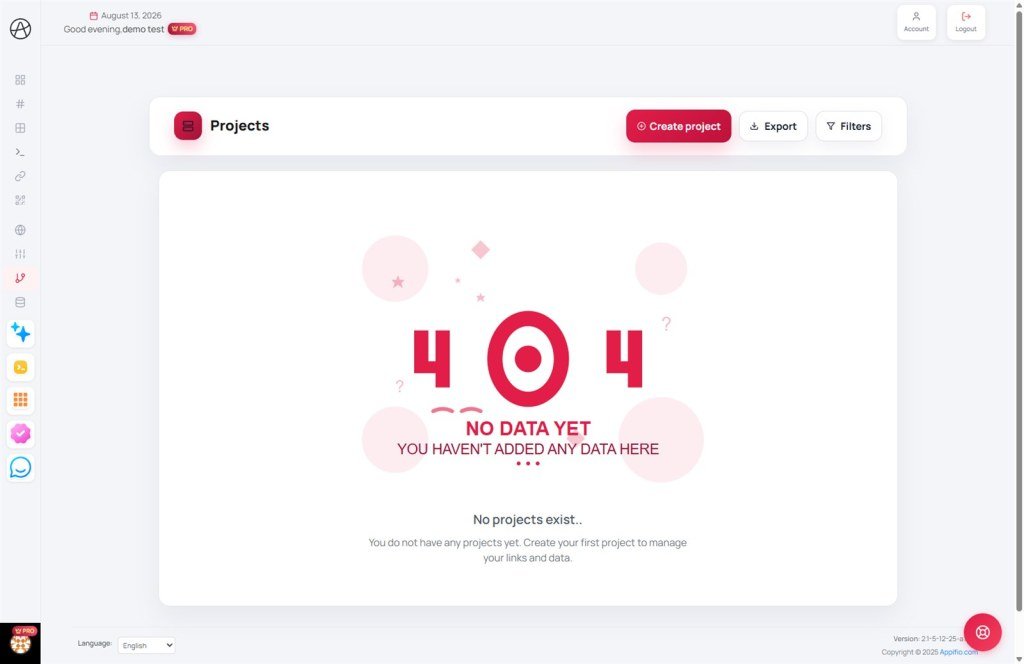
- Locate and click on the Projects section in your main Dashboard.
- Click the Create Project button (located in the top right corner).
- Name your project: Use a name that is easy to remember and describes its purpose (e.g., July Marketing Campaign).
- Select a color: The system provides a rich color palette. Choose a signature color so you can instantly recognize this project in your list.
- Click Create to finalize your new workspace.
3. Managing resources within a project
Once a project is created, you can assign any resource to it. In your project list, you will find quick-access icons for:
- Links: View all Biolinks, AI Websites, and shortlinks belonging to this project.
- Pixels: Manage tracking codes (Facebook, Google, TikTok) assigned specifically to this project.
- Data: Instantly access customer information (Emails, Phone numbers, Orders) collected by this project.
- QR Codes: Manage QR codes generated specifically for the links within this project.
- Analytics: Monitor the overall performance of the entire project, including total visits and user behavior across all associated links.
- Payments: Track invoices and financial transactions generated by customers within this project.
4. Editing, deleting, and exporting data
Our system allows you to flexibly adjust your management structure at any time:
- Editing: You can rename or change the project color by clicking the Pencil icon. Renaming will not affect the links contained within.
- Exporting: You can download your project list as a CSV file (for Excel) or JSON (for technical archiving), giving you a bird's-eye view of all your workspaces.
The Project deletion mechanism
Unlike deleting a Domain or a Biolink, deleting a Project has a specific logic that you should understand:
- Resources are preserved: All Links, Pixels, QR Codes, and Customer Data within the project are NOT deleted from the system.
- Revert to "Uncategorized": These resources will simply have their project tag removed and will appear as standalone items in their respective management lists.
- Easy re-assignment: You can create a new project and re-assign these resources to the new workspace at any time.
5. Project limits and plan tiers
To ensure optimal system performance, the maximum number of projects you can create depends on your subscription plan:
- You can check your current usage versus your plan limit directly on the Create Project button.
- If you've reached your limit, you may need to delete unused projects or upgrade your plan to expand your workspace capacity.
© 2026 Appifio Creator - Professional workspace organization solutions
