
- 1. What is AI Prompt Studio?
- Connection with Showcase
- 2. Exploring prompt types in the Studio
- System prompts
- User prompts
- 3. Discovering prompt detail pages
- Prompt structure
- Powerful interactive features
- Sample result preview
- 4. Guide to creating a new prompt
- Approval and storage mechanism
- 5. Technical guide and prompt formats
- Markdown (text_markdown) - Most popular
- YAML - Structure and Logic
- JSON - Standard data exchange
- Skill - Defining AI skills
- 6. Approval mechanism and "re-approval" logic
- 7. Building reputation and personal profile
- 8. Different from Prompt & Skills inside Creator

Explore the treasure trove of AI prompts and learn how to build your own professional prompt library on Appifio Creator.
1. What is AI Prompt Studio?
AI Prompt Studio is Appifio's central hub for storing, sharing, and optimizing AI prompts. It's where you can find successful "recipes" for creating high-quality websites, apps, or content without needing deep technical expertise.
2. Exploring prompt types in the Studio
The Prompt Studio library is organized into two main resource groups for easy exploration:
System prompts
- Origin: Authored and optimized by Appifio's AI experts.
- Characteristics: High precision, thoroughly tested across various AI models. Often accompanied by visual sample results.
- Features: Deeply integrated with the platform's automated website/app creation wizards.
User prompts
- Origin: Created and shared publicly by the community through real-world projects.
- Characteristics: Highly practical, diverse in style and approach.
- Design.md privilege: These are the prompts behind beautiful designs on the Showcase, allowing you to learn the project's "DNA."
3. Discovering prompt detail pages
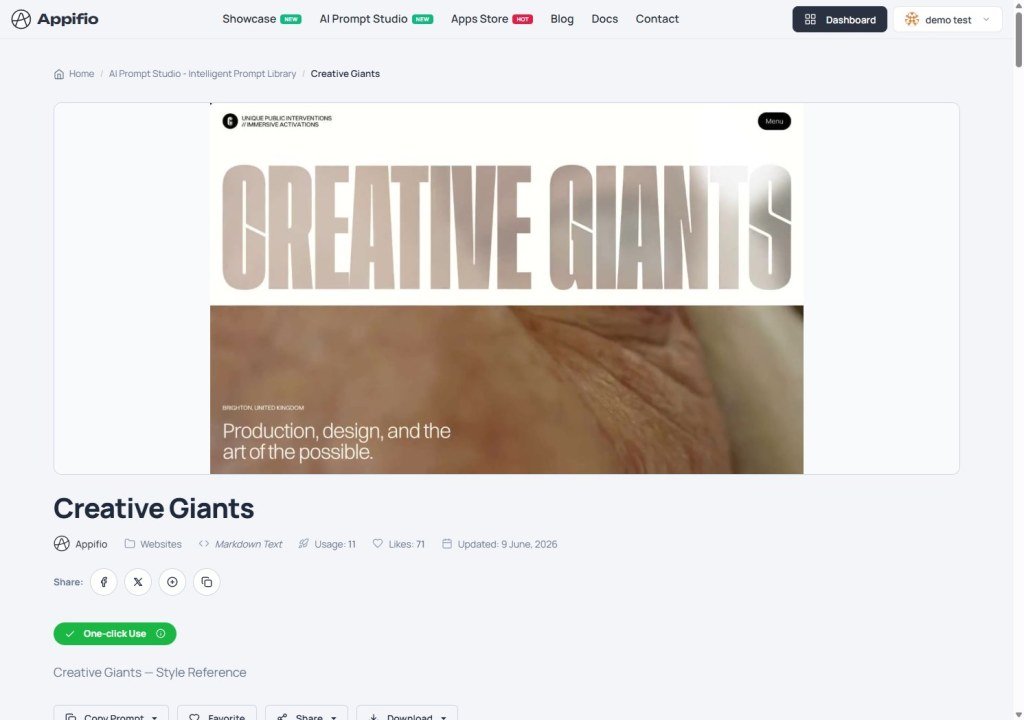
The detail page provides all the necessary information to understand how a prompt template works:
Prompt structure
Appifio offers flexible viewing modes for researching prompt structures:
- Rendered mode: View beautifully formatted content (Markdown).
- Source mode: View the raw prompt content for easy copying.
- YAML mode: View standardized data structures to understand the logic of prompt components.
Powerful interactive features
- Use with Appifio Creator: The most important button, which takes this prompt directly into the creation wizard in your Dashboard.
- Like and share: Save favorite prompts to your list and share them on social media.
- Multi-format download: Supports downloading prompts as `.md` or `.yaml` files for offline storage.
- Showcase connection: If this prompt has created a specific design, you'll see a direct link to its Showcase page.
Sample result preview
For high-quality prompts, the system displays a visual "Sample result" in HTML format, helping you instantly visualize what the AI will create.
4. Guide to creating a new prompt
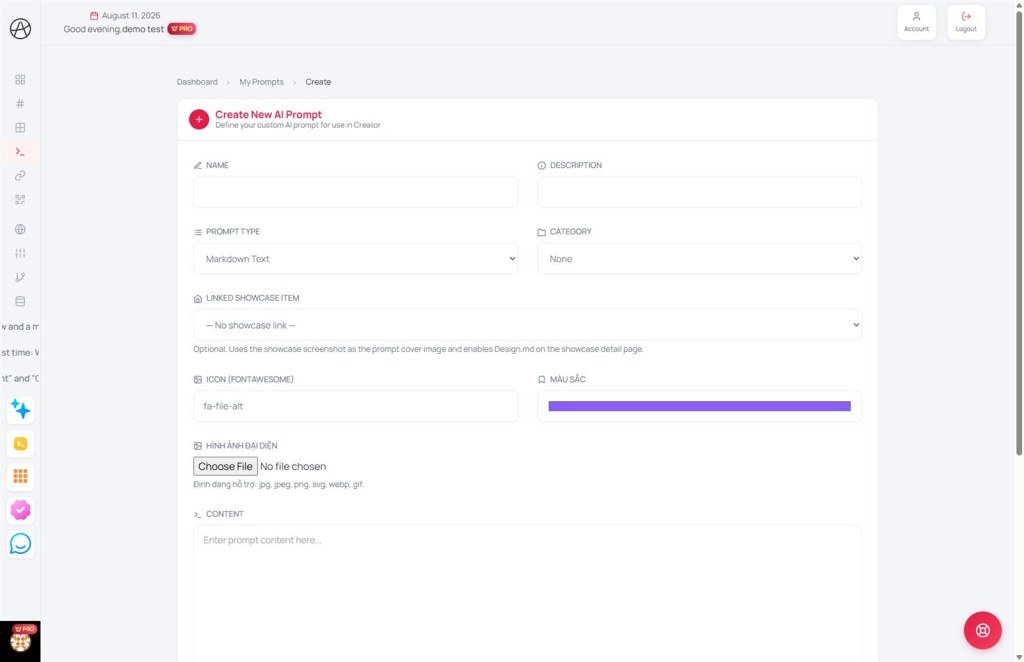
To start building your personal library, navigate to the My prompts page via appifio.com/user-context-templates. From there, click the "Create" button (plus icon) located on the right side of the page header. The setup interface includes the following fields in order from top to bottom:
Name: Enter a unique identifier for your prompt template.
Description: Write a brief introduction about the purpose or goal of the prompt.
Prompt type: Choose the appropriate data format (Markdown, YAML, JSON, or Skill).
Category: Select a category to classify the prompt in the library.
Showcase link: Select a project you've shared on the Showcase to link with this prompt.
* This is the core mechanism: When you make this link, the system automatically displays the Design.md button on that project's detail page in the Showcase, allowing viewers to access the original prompt.
Icon (FontAwesome): Enter an icon code to display (e.g., fa-robot).
Color: Choose a specific identification color for the prompt card.
Display image: Upload an image illustrating the result this prompt produces.
Content: Enter the full AI prompt content into the large text area.
Contributors: Acknowledge authors or collaborators involved in building the prompt.
Tags: Enter relevant keywords to optimize searchability.
Public on Studio: Enable this toggle if you wish to share the prompt with the community.
Approval and storage mechanism
After filling in all details and clicking "Create," if you chose public mode, your prompt will be placed in a "Pending" state. Administrators will review the content before allowing it to appear on the public Studio.
5. Technical guide and prompt formats
To create high-quality AI prompts, you need to master the data formats Appifio supports. Here is a detailed guide and reference samples:
Markdown (text_markdown) - Most popular
Markdown is a lightweight markup language that's easy to read and write. It's the standard format for design.md files used to describe website structures.
Sample design.md prompt:
# Website design requirements
## Theme: Photographer Portfolio
## Core requirements:
- Primary colors: Black (#000000) and White (#FFFFFF).
- Layout: Display image grid, no borders.
- Features: Hidden navigation menu (Hamburger menu).
- Inspiration: Minimalist, focused on imagery.
🔗 Further reading: Complete Markdown guide
YAML - Structure and Logic
YAML is often used when you want to convey technical parameters strictly yet readably.
Sample YAML prompt:
ai_wizard_config:
  task: "Create SaaS application"
  framework: "React/Next.js"
  ui_components:
    - sidebar_navigation
    - data_table_with_filter
    - user_profile_settings
  security: "JWT Authentication"
🔗 Further reading: Standard YAML documentation
JSON - Standard data exchange
JSON is a lightweight data-interchange format widely used in programming to exchange data between systems.
Sample JSON prompt:
{
  "instruction": "Analyze customer data",
  "input_format": "CSV",
  "expected_output": {
    "summary": "Trend description",
    "charts": ["Bar chart", "Pie chart"],
    "recommendations": true
  }
}
🔗 Further reading: Learn about JSON
Skill - Defining AI skills
The Skill format allows you to train the AI to perform a specialized task following a logical workflow.
Sample Skill prompt:
# Skill: SEO optimization expert
## Task: Analyze and fix content for search engines.
## Workflow:
1. Read input content.
2. Check target keyword density.
3. Suggest new title (H1) and meta description.
4. Provide a list of related keywords.
6. Approval mechanism and "re-approval" logic
Similar to the Showcase, AI Prompt Studio applies strict controls to ensure a quality knowledge environment:
- Pending state: Any new prompt template selected for "Public" mode requires Administrator approval before appearing publicly on the Studio.
- Automatic re-approval logic: If you make any edits and click "Update" on an already approved template, the system will automatically revoke its approval status and place it back in the pending queue for review.
7. Building reputation and personal profile
Every Usage count and Like from the community is recorded directly to your Personal profile. This not only helps you build your personal brand but also helps other users find "trusted authors" to follow and learn from.
8. Different from Prompt & Skills inside Creator
AI Prompt Studio (this guide / appifio.com/ai-prompt-studio) is the community library to discover, save, and share prompts.
Inside Appifio Creator, the Prompt & Skills tab enables AI profiles for the open project; the Project profile button stores brand/app name/logo - neither replaces the public website library.
Creator operations (draft, Save changes, Export…) → Appifio Creator overview guide.
© 2026 Appifio Creator - AI Prompt Studio user guide
