
- 1. Introducing AI Help Bubble
- 2. Key system features
- Real-time AI chat
- Intelligent ticket system
- Request human support
- 3. Detailed usage instructions
- Starting a conversation
- Managing and switching tickets
- How to request Admin support
- 4. Operation logic and security
- Limits and regulations
- Notification mechanism
24/7 Intelligent Support
Estimated reading time: 10 minutes | 85 views
Learn how to optimize your workflow and receive instant technical support through the integrated AI Help Bubble system available across the entire platform.
1. Introducing AI Help Bubble
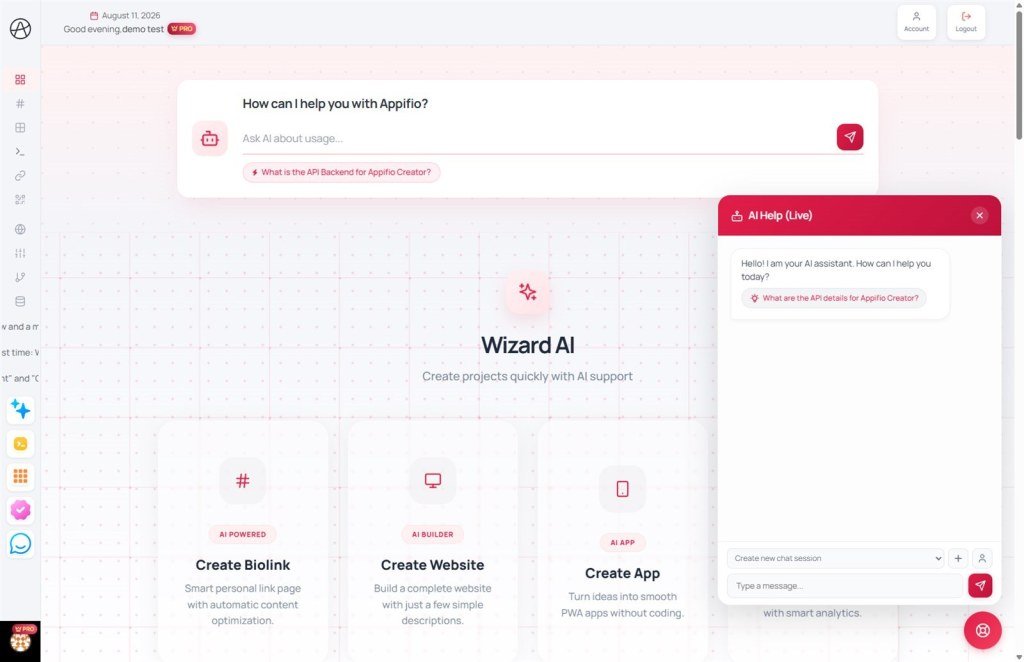
AI Help Bubble is a small Life Ring icon that remains present in the bottom-right corner of your screen whenever you are logged into Appifio. It is far more than just a simple chat window; it is a comprehensive support system that combines advanced Artificial Intelligence (AI) with our team of human technical experts.
2. Key system features
Real-time AI chat
Powered by advanced DeepSeek technology, our virtual assistant can analyze the context of the page you are currently viewing to provide the most accurate guidance. Responses are delivered in a streaming format, allowing you to see the answer as it is being generated.
Intelligent ticket system
Every conversation is stored as a unique "Ticket" with a dedicated ID (e.g., #TK8X9Y1Z). You can create multiple tickets for different issues and revisit your chat history at any time.
Request human support
If the AI is unable to resolve your issue, you can request intervention from our administration team. Your ticket will then be moved to "Waiting for Admin" status, and a technical expert will join the chat directly.
3. Detailed usage instructions
Starting a conversation
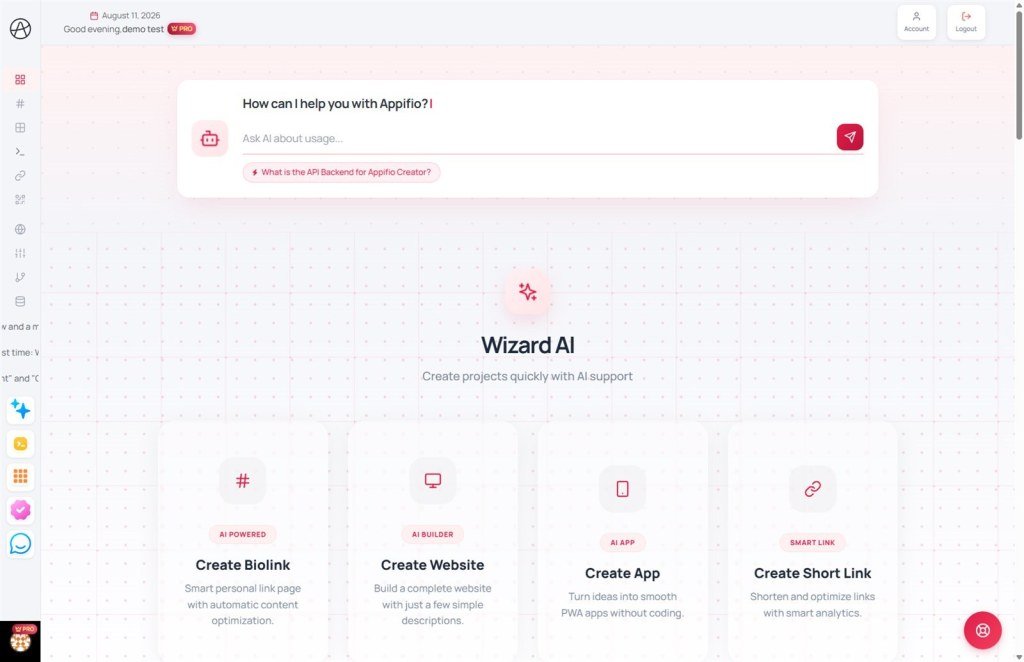
- Click on the red Life Ring icon in the bottom-right corner of your screen.
- The system will display Suggested Topics. You can click on a topic for a quick query or type your own message in the input field below.
- Press Enter or click the Send (paper plane) icon to submit your message.
Managing and switching tickets
- Create a new ticket: Click the Plus (+) icon in the toolbar above the input field to start a completely new topic.
- Review previous tickets: Use the dropdown menu next to the plus icon to select and reload any of your past conversations.
- Ticket statuses:
- Open: Currently in progress with the AI.
- Waiting for Admin: Your request has been sent and is awaiting a human technician's response.
- Closed: The issue has been successfully resolved.
How to request Admin support
In the toolbar below the chat window, click on the User icon. A confirmation message will appear. Once confirmed, your request will be forwarded to our administrative system. When an Admin responds, their message will appear directly within the chat interface.
4. Operation logic and security
Limits and regulations
- Conversation quotas: Depending on your subscription plan, there may be limits on the number of open tickets allowed simultaneously to ensure system performance.
- Context awareness: The AI is aware of which page you are on (e.g., Domain Management or Statistics) to prioritize relevant instructions.
- Data privacy: All chat content is encrypted. Only you and senior administration staff have the authority to view your support history.
Notification mechanism
If you receive a new message from an Admin while the chat window is closed, a red notification dot will appear on the Life Ring icon so you don't miss important support updates.
© 2026 Appifio. All rights reserved. Documented by Customer Support.
